How to Phone with Wi‑Fi: A Complete Wi‑Fi Calling Guide
Learn how to phone with Wi‑Fi using Wi‑Fi Calling. This guide covers eligibility, enabling steps for iPhone and Android, testing, and tips for reliable calls.


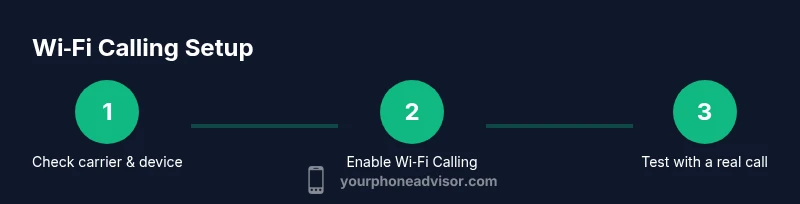
Wi‑Fi Calling lets you place calls over a Wi‑Fi network when cellular service is weak. Enable it on your device, ensure your carrier supports it, and test a call over a real network. This guide walks you through eligibility, setup, and best practices for reliable calls.
What Wi‑Fi Calling Is and Why It Matters
Wi‑Fi calling enables voice calls to be routed over a Wi‑Fi network rather than the cellular network. This can improve call clarity indoors and in areas with weak cellular reception. According to Your Phone Advisor, Wi‑Fi Calling uses VoIP technology in partnership with your carrier, while still delivering standard phone-number experiences to recipients. The feature can also help when roaming and in locations where cellular bands are congested. Expect seamless handoffs when moving between networks, but be mindful of data usage and network quality. With a reliable Wi‑Fi connection, you can maintain steady conversations even in basements, large buildings, or transit hubs.
Key takeaways: enable it where supported, test in typical environments, and monitor call quality over different networks.
Prerequisites and Eligibility
Before you begin, confirm that your carrier supports Wi‑Fi Calling and that your device model is compatible. Check your OS version and install any pending updates, since updates often bring improved VoIP handling and stability. You may need to sign in to your mobile carrier account to enable the feature or agree to terms of service. A stable internet connection is essential, so ensure your Wi‑Fi network is reliable, has sufficient bandwidth, and isn’t blocked by a VPN or firewall. Finally, verify that emergency services (like 911) can be reached via Wi‑Fi Calling in your region, and understand how location data is shared during calls.
Your Phone Advisor emphasizes checking both device and plan compatibility before enabling Wi‑Fi Calling.
Enabling Wi‑Fi Calling on iPhone
On iPhone, Wi‑Fi Calling is configured through the Settings app. Open Settings, tap Phone, then Wi‑Fi Calling, and toggle the feature on. You may need to confirm your address for emergency services, and ensure Cellular Data is enabled for the feature to work properly. A quick test call is recommended after enabling to verify network handoffs between cellular and Wi‑Fi. If you don’t see the option, update iOS or contact your carrier for compatibility notes.
Tip: keep your iPhone updated to the latest iOS version to maximize stability and performance.
Enabling Wi‑Fi Calling on Android
Android devices handle Wi‑Fi Calling through Settings, typically under Network & Internet or Connections. Navigate to the Wi‑Fi Calling switch and enable it, following any on-screen prompts to verify carrier support. You may be asked to assign emergency address details for 911 calls. After enabling, perform a test call on a known-good Wi‑Fi network. If the option isn’t visible, check for OS updates or confirm carrier support in your region.
Tip: some devices require a carrier app installation to activate Wi‑Fi Calling.
Testing and Best Practices
After enabling, test Wi‑Fi Calling under different conditions: your home, office, and public networks. Observe call quality, latency, and the seamlessness of switching between Wi‑Fi and cellular. Disable VPNs or proxies that could interfere with VoIP traffic, and prefer a 5 GHz network for reduced interference. In environments with electrical interference or heavy network load, restrict background apps that compete for bandwidth during calls. Finally, periodically re-test to ensure ongoing reliability after software updates or network changes.
Tools & Materials
- Compatible smartphone(Wi‑Fi Calling supported by your OS and carrier)
- Active carrier plan that supports Wi‑Fi Calling(Some plans require enrollment or opt-in)
- Stable Wi‑Fi network(5 GHz preferred for best performance)
- Access to Settings on iPhone and/or Android(You’ll need to enable Wi‑Fi Calling in the device settings)
- Phone OS updated to latest version(Updates improve VoIP handling and security)
- Carrier account credentials (if prompted)(May be needed to enable features or sign in to carrier app)
Steps
Estimated time: 15-25 minutes
- 1
Check compatibility
Verify your device model, OS version, and carrier support for Wi‑Fi Calling. If any element is missing, update your device or contact your carrier for guidance. Compatibility is the foundation for reliable calls.
Tip: Consult your carrier’s official list of supported devices before proceeding. - 2
Update the device
Install the latest operating system update on your phone to ensure optimal VoIP performance and security. A fresh update can fix known issues that affect Wi‑Fi Calling.
Tip: Connect to a stable Wi‑Fi network during update to avoid interruptions. - 3
Prepare carrier settings
If your carrier requires it, sign in to the carrier app or portal to enable Wi‑Fi Calling and confirm any terms. This ensures the feature is active on your account.
Tip: Keep a record of any settings you change for future troubleshooting. - 4
Enable on iPhone
Go to Settings > Phone > Wi‑Fi Calling and switch it on. If prompted, add your emergency address and confirm that you want to allow calls over Wi‑Fi.
Tip: Optionally enable 'Prefer Wi‑Fi While Roaming' if you travel frequently. - 5
Enable on Android
Open Settings > Network & Internet > Wi‑Fi Calling (path may vary by vendor) and toggle the feature on. Confirm any carrier prompts and emergency address details.
Tip: Some devices require a carrier app to complete activation. - 6
Choose a strong Wi‑Fi network
Connect to a dependable network with good signal strength and bandwidth. A crowded or weak network will degrade call quality.
Tip: Avoid public networks for sensitive conversations; favor a trusted home or office network. - 7
Test a call over Wi‑Fi
Dial a contact and observe clarity, latency, and whether the call stays on Wi‑Fi or switches to cellular. Test in different rooms to gauge performance.
Tip: If the call drops, switch to a stronger network or disable VPNs that may block VoIP traffic. - 8
Test emergency calling behavior
Confirm that emergency services can be reached via Wi‑Fi Calling in your region and understand how location data is shared during an emergency call.
Tip: Keep location services enabled for accurate emergency routing. - 9
Set your preferred calling method
Decide whether to prefer Wi‑Fi Calling whenever a Wi‑Fi network is available or to fallback to cellular when Wi‑Fi is unstable.
Tip: Explicitly test the switch behavior so it aligns with your expectations. - 10
Review data usage and battery impact
Monitor any additional data usage and battery drain associated with VoIP traffic on your device. Adjust settings if you notice significant impact.
Tip: Close unnecessary background apps during calls to conserve battery and improve performance.
Got Questions?
Do I need Wi‑Fi Calling on both ends for the call to work?
Most Wi‑Fi Calling implementations require support on both caller and recipient sides, though some carriers can route calls when only one side supports it. If the recipient's device doesn't support Wi‑Fi Calling, the call may still connect using the carrier network or fall back to standard VoIP. Always verify the recipient’s capability during critical conversations.
Wi‑Fi Calling usually works best when both devices support it, but it can sometimes connect if only one side is capable. Always test with a known contact.
Is Wi‑Fi Calling secure?
Wi‑Fi Calling uses encryption and standard VoIP protocols, but security also depends on your network. Use a trusted Wi‑Fi network, keep devices updated, and avoid public networks for sensitive conversations.
Yes, it uses encryption like other VoIP calls, but security depends on your network; use trusted networks.
Will Wi‑Fi Calling use my data plan?
Wi‑Fi Calling routes voice traffic over your internet connection, not your cellular minutes. When using Wi‑Fi, data consumption will occur on your internet plan rather than your cellular plan, though some carriers may count it differently when roaming.
Calls use data over the internet, not your cellular minutes; roaming may vary by carrier.
Can I emergency call using Wi‑Fi Calling?
In many regions, emergency calls can be made over Wi‑Fi Calling, but routing and location sharing may differ from traditional cellular calls. Check your regional guidelines and test with a non-emergency number if allowed by local rules.
In many places you can call emergency services, but behavior varies; test locally.
What should I do if the Wi‑Fi Calling call quality is poor?
Verify your Wi‑Fi network is strong and stable, consider moving closer to the router, disable VPNs, and run a quick speed test. If issues persist, switch to a cellular call while you troubleshoot.
If quality is poor, check your network and try a cellular call while you troubleshoot.
Are there charges for Wi‑Fi Calling?
Wi‑Fi Calling typically uses your data plan and does not incur separate Wi‑Fi Calling charges from many carriers, but rules vary by provider and region. Always confirm with your carrier for precise billing details.
Most carriers don’t charge extra for Wi‑Fi Calling, but check your plan for any regional rules.
Watch Video
What to Remember
- Verify device and carrier support before enabling Wi‑Fi Calling.
- Enable on both iPhone and Android devices where required for full functionality.
- Test calls in multiple environments to confirm reliability and handoff behavior.
- Understand emergency calling rules and location data implications.
- Regularly update software to maintain performance and security.