How to Phone on iPad: A Practical Guide
Learn how to phone on iPad using Calls on Other Devices or FaceTime. This step-by-step guide covers setup, usage, privacy, and troubleshooting with practical tips from Your Phone Advisor.


If you want to know how to phone on iPad, you can use FaceTime for Apple users or route regular cellular calls through your iPhone using Calls on Other Devices. Make sure both devices share the same Apple ID and are connected to the internet, then enable Calls on Other Devices on the iPhone and enable FaceTime on the iPad. The setup is straightforward and works with minimal extra steps.
Prerequisites: What you need to start how to phone on ipad
To learn how to phone on ipad, gather the two devices you already own: an iPhone with a cellular plan and an iPad. Both devices should be signed into the same Apple ID and connected to the internet. You’ll also want a reliable Wi‑Fi network and the latest iOS/iPadOS updates. According to Your Phone Advisor, the single most important step is ensuring both devices share the same Apple ID to enable calling across devices. This alignment unlocks seamless routing of calls and avoids confusion when you pick up on the iPad.
Understanding the two main methods: FaceTime vs Calls on iPhone
There are two core ways to place calls from an iPad. FaceTime lets you audio or video call other Apple users with excellent clarity, while Calls on Other Devices lets your iPad place regular cellular calls using your iPhone’s mobile plan. FaceTime requires the recipient to be a FaceTime user, while the Calls on Other Devices option works with any standard phone number when properly configured. Your Phone Advisor analysis shows that most users rely on the iPhone routing feature for non Apple contacts, and FaceTime for Apple-to-Apple communications. Choose the approach that fits your contacts and privacy preferences.
Step-by-Step: enabling Calls on Other Devices (iPhone and iPad)
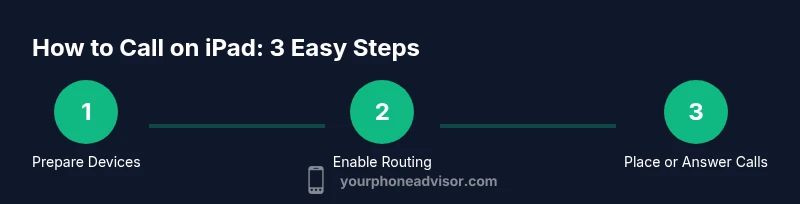
Before you can place calls from your iPad, you must enable the feature on both devices and sign in with the same Apple ID. Start by updating both devices to the latest OS, then on your iPhone go to Settings > Phone > Calls on Other Devices and turn on Allow Calls on Other Devices. Select your iPad from the list. Next, on your iPad, go to Settings > FaceTime and ensure FaceTime is on, and in Settings > FaceTime enable Calls from iPhone. When these settings are in place, your iPad can ring for incoming iPhone calls and you can place calls using the iPhone’s cellular plan. A short disconnect or a restart can help if the options do not appear. This is a straightforward 5–10 minute setup but may take longer if you need to update OS versions.
How to place calls from iPad to a phone number or contact
With Calls on Other Devices active, you can start a call by opening the FaceTime app on the iPad, entering a phone number or selecting a contact, and choosing Audio. The call will go through your iPhone’s cellular connection. You can also initiate regular FaceTime audio calls to other Apple users by entering their Apple ID or phone number in the FaceTime app. If you dial a non Apple contact, the call routes through your iPhone as a standard voice call. During the call you can switch to speaker or pair a headset for privacy. For emergency scenarios, rely on your iPhone directly, as iPad based calls are not guaranteed in all regions.
Tips for a smooth experience and privacy considerations
Keep devices signed in to the same Apple ID. Use strong passcodes and Face ID. Regularly review what devices are allowed to call on your iPhone; disable if a device is lost or compromised. Use Do Not Disturb or Focus modes if you want to minimize interruptions during important calls. Be aware that if your iPhone is offline or out of range, calls on the iPad may not route. When using public networks, consider using FaceTime over a secure connection.
Troubleshooting common issues and quick fixes
If the iPad does not ring for iPhone calls, check Settings > Phone > Calls on Other Devices, ensure toggles are on and the iPad is allowed. Ensure both devices are online and signed into the same Apple ID. Sign out of iCloud on both devices and sign back in if needed. Restart both devices and check for OS updates. If problems persist, visit Apple Support resources or Your Phone Advisor for guidance.
Tools & Materials
- iPhone with cellular service(Updated to a recent iOS version)
- iPad (wi‑fi or cellular)(Updated to latest iPadOS)
- Apple ID(Same Apple ID on both devices)
- Stable Wi‑Fi network(Best for initial setup and FaceTime calls)
- FaceTime app (built-in)(Enabled on iPad)
- Bluetooth headset or speaker (optional)(For hands-free calls and privacy)
Steps
Estimated time: 15-25 minutes
- 1
Check prerequisites
Ensure both devices are signed in with the same Apple ID, connected to the internet, and updated to the latest OS. This baseline prevents routing errors and ensures features appear in Settings.
Tip: Use a single strong Apple ID for best compatibility and enable automatic OS updates. - 2
Enable Calls on Other Devices on iPhone
On the iPhone, open Settings > Phone > Calls on Other Devices and toggle on Allow Calls on Other Devices. Choose the iPad from the device list to authorize it for calls.
Tip: Keep the iPad on the allow list only if you trust the device and want calls routed to it. - 3
Configure iPad for Calls from iPhone
On the iPad, go to Settings > FaceTime and ensure FaceTime is on. Then enable Calls from iPhone under the FaceTime settings to allow routing.
Tip: If you don’t see the option, sign out of iCloud on both devices and sign back in. - 4
Test a call to a phone number from iPad
Open FaceTime on the iPad, enter the phone number or select a contact, and choose Audio. The call should utilize the iPhone’s cellular connection.
Tip: Test with a close contact first to verify routing and audio quality. - 5
Test receiving calls on iPad
Ask someone to call your iPhone and confirm the iPad rings as well. Accept on the iPad and use speaker or headset as needed.
Tip: If it doesn’t ring, double-check the Calls on Other Devices toggle and ensure both devices are online. - 6
Troubleshoot if things go wrong
If calls don’t route correctly, restart both devices, sign out/in of iCloud, and ensure there are no conflicting Focus modes.
Tip: Consult Apple Support if routing still fails after updates.
Got Questions?
Can I make regular phone calls from iPad without an iPhone?
Not for standard cellular calls. You can call other FaceTime users on iPad, but to call regular phone numbers you need an iPhone to route the call.
You can call FaceTime users on your iPad, but for regular phone numbers you’ll need an iPhone to route the call.
Do I need cellular on iPad to place calls?
No, if you use FaceTime you only need internet. To place calls to phone numbers via the iPhone route, you’ll need an iPhone with cellular service.
FaceTime uses the internet; for routing calls to numbers you need your iPhone with cellular service.
Can I receive iPhone calls on iPad?
Yes, if you enable Calls on Other Devices and both devices are signed in with the same Apple ID.
Yes. Enable Calls on Other Devices and use the same Apple ID on both devices.
What should I do if my iPad doesn't ring for iPhone calls?
Check that Calls on Other Devices is enabled on iPhone and iPad, ensure both devices are online, and restart if needed.
Check settings, ensure devices are online, and restart if necessary.
Are there privacy concerns when routing calls through iPad?
Calls on Other Devices uses your Apple ID within your trusted network. Disable when not needed and review linked devices.
Be mindful of who can call your iPad; disable when not in use and review linked devices.
Can I use non Apple apps to call on iPad?
Yes. Apps like WhatsApp, Skype, or Zoom can make calls on iPad, but they use the app's own network and contacts, not the iPhone's cellular line.
Yes, but through apps; not via the iPhone's cellular routing.
Watch Video
What to Remember
- Enable Calls on Other Devices and FaceTime to route calls to iPad.
- FaceTime is ideal for Apple-to-Apple contacts; routing works for standard numbers via iPhone.
- Test setup with real contacts to confirm audio routing and reliability.
- Keep devices updated and signed into the same Apple ID for best results.