Can you get a phone number on an iPad? A Practical Guide
Learn whether an iPad can have its own phone number, how Continuity works, and practical paths like carrier plans or VoIP apps. Clear options, pros/cons, and step-by-step tips.


Can you get a phone number on an iPad? Generally, iPads don’t receive a standalone voice number. You can either use your iPhone’s number on the iPad via Continuity calls or obtain a separate line through your carrier or a VoIP app. Your choice depends on location, carrier support, and how you plan to use the device.
Can you get a phone number on an iPad? A reality check
Can you get a phone number on an iPad? According to Your Phone Advisor, this question surfaces often because people expect every cellular device to carry a separate line. In practice, iPads that support cellular data are primarily data devices, and they do not automatically receive a traditional voice number. Most carriers and device setups do not assign a standalone phone number to the iPad by default. Instead, there are two viable routes: you can use your iPhone’s number on the iPad through Continuity features, or you can obtain a separate number through a carrier plan or a third‑party VoIP app. Your choice depends on where you live, what your carrier supports, and how you plan to use the device. Your Phone Advisor’s analysis suggests you start by clarifying your actual use case—do you want to make and receive calls, join video conferences, or simply stay reachable via messaging? When you map your needs, you’ll see which path offers the best balance of convenience, cost, and privacy. Remember that each option has tradeoffs: Continuity is easy and seamless but tethered to another device; dedicated numbers offer independence but may incur ongoing costs.
How iPads handle voice capabilities: Voice calls vs data plans
An iPad is primarily a data device. Even models with a SIM tray typically rely on data plans and do not include a built-in traditional voice line for calls to landlines or mobile numbers. You can still communicate using FaceTime Audio, iMessage, or third‑party VoIP apps (like Skype, WhatsApp, or Google Voice) that use data instead of a cellular voice channel. If you want to place calls to a regular phone number, you’ll usually need to route the call through another device (most commonly an iPhone) or use a VoIP service linked to the internet. This distinction matters for users who travel, work remotely, or want to avoid extra carrier costs. Consider how you tend to stay connected—is it voice calls, video chats, or quick messages? Your choice will shape which option feels most natural and cost‑effective.
Continuity: Using your iPhone's number on iPad
Continuity allows you to make and receive cellular calls on an iPad using your iPhone’s number, as long as both devices are linked to the same Apple ID and on compatible networks. To enable this, you’ll typically turn on Calls on Other Devices on the iPhone and ensure the iPad is configured to receive calls. This setup creates a seamless experience where the iPad acts as an extension of the iPhone’s line, so you can answer a call on the larger screen or place a call from the iPad when your phone is nearby. Note that this approach relies on your iPhone being online and reachable; it does not give you a separate, independent iPad number. If privacy is a concern, review which apps have access to your contacts and microphone and adjust settings accordingly.
Carrier options for a dedicated iPad number
Some carriers offer options that allow an iPad to have its own number, typically via an eSIM or a business line. Availability varies by country and carrier, and pricing can differ widely. If your goal is to have a truly independent number on the iPad (for business, personal use, or traveling scenarios), contact your mobile provider to explore “iPad line” or “multi‑SIM/eSIM” offerings. Be prepared to provide intent (voice calls vs. data), expected call volume, and whether you want voice mail, messaging, or data‑only access with the number. Because these plans are carrier‑specific, you may see a broad range of features and fees. If you’re unsure whether this option is right for you, test with a short‑term plan before committing long‑term.
Third‑party options: VoIP numbers and apps
If a dedicated carrier number isn’t appealing or available, you can use a third‑party VoIP service to obtain a separate number for your iPad. Services such as Google Voice, Skype, or similar platforms provide a dialable number for making and receiving calls over the internet. These solutions work well when you have reliable Wi‑Fi or cellular data, and they can be cheaper or more flexible for frequent travelers. When choosing a service, consider voice quality, spam protection, voicemail features, and whether the provider offers a mobile app that integrates with your iPad. Keep in mind that VoIP numbers are not the same as a traditional carrier line, so emergency services may respond differently.
Privacy, security, and data usage considerations
Enabling calls on multiple devices or adding a second number introduces new privacy and security considerations. Regularly review app permissions and ensure you’re not exposing call logs or contacts to apps you don’t trust. Use strong passcodes, enable two‑factor authentication on your Apple ID and carrier accounts, and be mindful of where you’re connected (avoid public Wi‑Fi for sensitive calls). If you’re sharing devices at home or in a small business, establish boundaries on who can answer calls and access voicemail. Finally, monitor battery usage when Continuity features are active, as ongoing Bluetooth/Wi‑Fi activity can affect battery life.
Choosing the right path: a quick decision guide
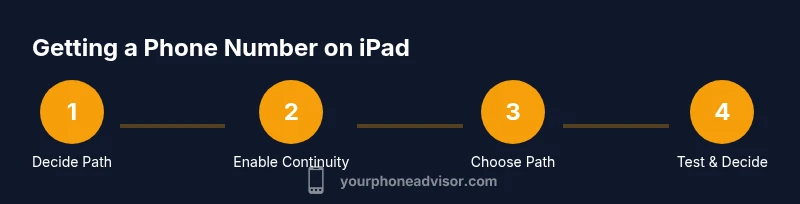
If you mainly need to stay in touch while using an iPad alongside an iPhone, Continuity is the simplest route and usually the most cost‑effective. If you require independent calls on the iPad for business or travel, a carrier‑provided iPad line may be worth exploring, keeping in mind regional availability and price. For occasional calls or to avoid carrier commitments, a VoIP number from a trusted provider can be ideal. In all cases, align your choice with your typical connectivity (Wi‑Fi vs cellular), your privacy expectations, and your budget.
Getting started: a practical checklist
Before you decide, list your key needs: Do you need a separate number on iPad, or is a paired iPhone number sufficient? Do you want video calling, voice calls, or just messaging? Check your region’s carrier offers, verify compatibility with your iPad model, and review privacy settings. Once you pick a path, use the step‑by‑step guides to set up and test the solution, then monitor usage and costs during the first month. This approach helps ensure you’re getting the experience you expect without surprises.
Tools & Materials
- iPhone with iOS 17+(Enables Continuity and Calls on Other Devices)
- iPad with iPadOS 17+ (cellular or Wi‑Fi)(Needed for Continuity or a standalone plan)
- Active Apple ID / iCloud account(Ensures seamless device linking and backups)
- Carrier plan capable of iPad line or eSIM(Only if you want a dedicated iPad number; availability varies)
- Third‑party VoIP service account (optional)(Useful for separate numbers and flexible usage)
- Reliable internet (Wi‑Fi or cellular data)(Data quality affects call reliability)
Steps
Estimated time: 30-60 minutes
- 1
Verify prerequisites and define your path
Review whether you want a shared iPhone number via Continuity, a dedicated iPad line, or a VoIP number. Confirm both devices are signed in with the same Apple ID and have active internet access. Decide which option aligns with your daily routines and budget.
Tip: Write down your primary use case (calls, video, or messaging) to guide your choice. - 2
Enable Calls on Other Devices on iPhone
On your iPhone, open Settings, navigate to Phone or Continuity, and enable Calls on Other Devices. This allows your iPad to receive calls routed from your iPhone. Ensure your iPhone is connected to the internet and near your iPad during setup.
Tip: Keep both devices on the same Wi‑Fi network for stability during setup. - 3
Enable Calls on Other Devices on iPad
On the iPad, go to Settings, then FaceTime, and enable Calls from iPhone. Verify you’re signed in with the same Apple ID as the iPhone. A quick test by calling from the iPad confirms the link.
Tip: If calls don’t appear, toggle Bluetooth and Wi‑Fi off/on, then recheck settings. - 4
Test a call and review quality
Place a test call from the iPad to another line (or your iPhone) to verify audio quality and connection. Observe whether the call uses your iPhone’s number and confirm voicemail behavior if applicable.
Tip: Test in different environments (home, office, outdoors) to gauge reliability. - 5
For a dedicated iPad number, contact your carrier
If you want a standalone iPad number, reach out to your carrier to discuss eSIM options or special lines for iPad. Compare pricing, features (voicemail, texting), and any limitations.
Tip: Ask about regional availability and any roaming considerations before buying. - 6
Set up a VoIP option as a backup or alternative
Install a trusted VoIP app and configure a new number for calling over data. Link it to your contacts and configure notifications so you don’t miss calls.
Tip: Choose a provider with good spam protection and emergency call capabilities if supported.
Got Questions?
Does every iPad have its own phone number?
No. Most iPads don’t come with a standalone number for voice calls. You can use Continuity with an iPhone or add a separate line via a carrier or VoIP service.
Most iPads don’t have their own phone number. You can use your iPhone’s line with Continuity or choose a separate number through a carrier or a VoIP app.
Can I make calls on my iPad without an iPhone nearby?
Yes, but only through the internet using FaceTime Audio or third‑party VoIP apps. There is no standard voice call channel to a traditional phone number without a data‑based service.
You can use FaceTime Audio or a VoIP app, but there’s no traditional cellular call unless Continuity with an iPhone is involved.
How do I get a dedicated iPad number?
Contact your carrier to explore iPad‑specific lines or eSIM options. Availability and pricing vary by region and provider.
Talk to your carrier about an iPad‑specific line or eSIM; options differ by country and provider.
Are VoIP numbers secure for business use?
Security depends on the provider. Choose reputable services, enable two‑factor authentication, and review app permissions and data handling policies.
Security varies by service; pick trusted VoIP apps and enable extra protections like two‑factor authentication.
Will using Calls on Other Devices affect battery life?
There is some extra background activity, which can slightly reduce battery life. Monitor usage and disable the feature when you don’t need it.
There can be a small battery impact from continuous cross‑device calling, so monitor and adjust as needed.
Watch Video
What to Remember
- iPad generally doesn’t get a separate voice number by default.
- Continuity lets iPad use the iPhone’s number for calls.
- A dedicated iPad number is carrier‑dependent and regionally variable.
- VoIP apps provide flexible, separate numbers over data.
- Prioritize privacy, settings, and costs when selecting a path.