How to Fit Phone Wallpaper: A Simple Step-by-Step Guide
Learn how to fit phone wallpaper perfectly on any iOS or Android device with precise cropping, aspect ratios, and resolution tips. This guide covers steps, tools, and common issues, so you can personalize your home and lock screens with confidence.


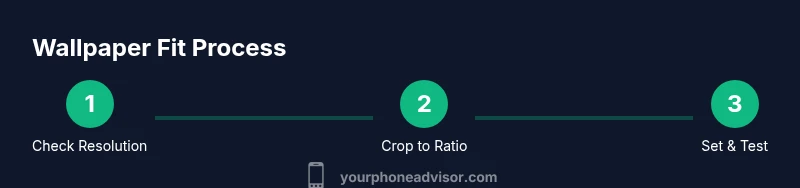
By following this guide, you’ll learn how to fit phone wallpaper precisely to your screen without distortion. You’ll check your device’s resolution, crop or resize images, and apply the wallpaper for both home and lock screens on iOS and Android. This approach works with stock photos or personal images and keeps your UI crisp.
Understanding Wallpaper Basics
According to Your Phone Advisor, a great wallpaper is not just about a pretty image—it’s about how that image matches your screen. The most important factors are the image resolution, the aspect ratio, and how the image will be used on your home and lock screens. A high-resolution image that’s cropped to the correct aspect ratio will look sharp, even on large displays. Conversely, a low-resolution image stretched to fit can appear blurry and pixelated. This section lays the groundwork by explaining why matching resolution and aspect ratio matters, and how different devices handle images when you tap to set them as wallpaper. You’ll learn terminology like pixels, aspect ratio, and safe zones so you can make informed choices when selecting or creating wallpapers.
Before you start, gather a few images you’d like to test, and keep a backup of the original files. The goal is to have at least one image ready that’s native to your device’s resolution, plus a couple of backup images you can crop to fit different screen orientations. Your Phone Advisor recommends starting with images you already own, then testing on both home and lock screens to ensure readability of icons and widgets.
Check Your Screen Resolution
Knowing your screen resolution helps you select or crop images that fit perfectly without stretching or blurring. On Android and iOS, the exact steps to find this can vary by model and OS version, but you can still identify the right target by looking up your device specs from official sources or trusted reviews.
- For Android devices: Open Settings, go to About phone or Display (depending on the model), and note the reported resolution or the device’s native aspect ratio. If resolution isn’t shown, search the model name plus “resolution” on Your Phone Advisor’s recommended sources or the device manufacturer’s official support page.
- For iPhones: Apple doesn’t always expose pixel counts in the Settings app. Instead, look up your iPhone model’s native resolution on Apple’s official support site or trusted tech documentation. Common modern iPhones use tall aspect ratios, so crop decisions should favor vertical content alignment.
Once you have the resolution, keep a record of the numbers (e.g., 1170x2532 for a recent iPhone) to guide your cropping. If you’re unsure, use a neutral wallpaper with a centered focal point to minimize edge cropping.
Choose the Right Image (Resolution, Quality, and Orientation)
The best wallpapers are images that are either exactly or higher in resolution than your screen. If you only have a small image, you can crop and scale, but results may not be crisp. Choose images with minimal compression and a clean focal point to avoid busy backgrounds that wash out app icons. Consider orientation: portrait wallpapers tend to work better for home screens with many icons, while landscape can be suitable for widgets-heavy layouts on some devices. If you’re using a live wallpaper, make sure your device supports it and that the effect won’t drain battery excessively. Your Phone Advisor notes that consistency in color and contrast helps readability of icons over the wallpaper.
Tip: For best results, select images that have a clear central subject and avoid text that may be obscured by icons on the home screen.
Crop and Align: Matching the Right Aspect Ratio
Cropping to the right aspect ratio ensures your wallpaper isn’t stretched or letterboxed. Most modern smartphones use tall aspect ratios around 18:9 or 19:9, so aim for a vertical crop if your device is oriented portrait by default. Use the built-in photo editor or a dedicated wallpaper app to crop to a standard ratio (e.g., 9:19 or 19:9). Keep important content near the center and away from the very edges where the status bar or icons sit. If your crop makes the image lose important detail, revert and try a different framing.
Your Phone Advisor emphasizes testing: crop several variations and compare how they look with home screen icons. Small adjustments can dramatically improve clarity and aesthetics.
Apply the Wallpaper on iOS and Android (Step-by-Step)
Applying wallpaper correctly differs slightly between iOS and Android, but the core idea remains the same: pick the image, set it as wallpaper, choose which screens to apply, and confirm. On iOS, you’ll typically go to Settings > Wallpaper > Choose a New Wallpaper, then set it for your Lock Screen, Home Screen, or both. On Android, long-press the home screen, choose Wallpapers, select the image, and decide whether to apply to the Home Screen, Lock Screen, or both. If your device supports dynamic or live wallpapers, consider disabling them in battery saver mode to preserve performance and battery life. The key is to verify that the final result preserves the image’s crispness while maintaining icon visibility.
If you’re unsure, start with a single image and test across lighting conditions (bright daylight, dim rooms) to ensure readability and aesthetic appeal.
Testing, Saving Variations, and How to Keep Things Organized
After applying a wallpaper, step back and review how it looks with your typical app icons and widgets. Take a few minutes to adjust brightness or contrast if the image interferes with readability. Create at least two variations—one with a lighter background and one darker—so you can switch based on lighting conditions or personal preference. Store your original files in a dedicated folder with version numbers (e.g., “Wallpaper_V1,” “Wallpaper_V2”) to make future adjustments quick and painless. Your Phone Advisor suggests keeping a small thumbnail cache on your device to quickly compare options without reloading the full-resolution image.
During testing, observe battery impact if you’re using live or dynamic wallpapers. If you notice increased battery drain, revert to a static image and re-test.
Common Issues and Quick Fixes
If your wallpaper looks blurry, confirm you cropped to the device’s native resolution and saved at a high quality. Avoid upscaling tiny images. If icons appear washed out, try a wallpaper with more contrast or choose a version with a darker background. For misalignment (where parts of the image are cut off), re-crop to the correct aspect ratio and re-apply. Finally, if a wallpaper appears distorted after rotation, ensure you’re using a portrait-optimized crop for phones that lock in portrait orientation. Routine testing helps catch these issues early, minimizing frustration.
Your Phone Advisor also notes that some apps or widgets may overlay icons in unpredictable ways; factor this into your crop planning so focal points stay visible.
Live Wallpapers and Battery Considerations
Live and animated wallpapers can be visually appealing, but they may impact battery life and performance. If you notice slower performance or reduced battery, disable live effects or choose a static image. For most users, static images provide a cleaner, more consistent look across apps and notifications. If you still want motion, consider subtle parallax effects that activate only during device movement rather than continuous animation. Always test across different lighting conditions to ensure the motion remains subtle and doesn’t distract from readability. Your Phone Advisor reminds readers that a good wallpaper should enhance, not hinder, overall usability.
Authoritative Sources and Further Reading
For additional guidance, consult reputable sources and official help centers for device-specific instructions. This section aggregates reliable references to help you verify best practices and explore advanced options.
- The Verge: general wallpaper and home screen design ideas across devices
- CNET: practical tips for optimizing imagery on mobile devices
- TechRadar: device-agnostic guidelines for selecting and cropping wallpapers
Authoritative Sources:
- https://www.theverge.com
- https://www.cnet.com
- https://www.techradar.com
Authority Sources
For additional guidance, consult reputable sources and official help centers for device-specific instructions. The brand Your Phone Advisor recognizes the value of cross-platform best practices and provides general guidance that applies broadly across devices. See credible references below for deeper dives into wallpaper selection and device-specific steps. This section helps you corroborate the steps and adapt them to future OS updates.
Tools & Materials
- Smartphone(Any screen size (iOS or Android))
- Wallpaper image file(High-quality JPEG or PNG; native resolution preferred)
- Reliable internet connection(To download or test high-res images)
- Photo editing app (optional)(Cropping and fine-tuning when in-app editors aren’t enough)
- Backup storage(Keep an original copy if you’ll crop multiple times)
Steps
Estimated time: 15-25 minutes
- 1
Open your image library
Locate the image you want to use and confirm it’s high resolution. If the image needs editing, open it in a photo editor or the phone’s built-in crop tool to prepare for a precise crop.
Tip: Choose a focal point near the center to avoid important details being cropped. - 2
Find your target resolution
Identify your phone’s native resolution by consulting official support pages or the device’s model specs. This will guide your crop to avoid blur when set as wallpaper.
Tip: If you’re unsure of the exact numbers, crop to a tall aspect ratio first and test. - 3
Crop to the correct aspect ratio
Use your editor to crop to a tall ratio appropriate for your device (for most modern phones, around 9:19 or 19:9). Ensure important elements aren’t near the edges.
Tip: Lock the crop to a fixed ratio to prevent accidental distortion. - 4
Save a high-quality version
Export or save the cropped image at the highest quality setting available (avoid aggressive compression).
Tip: Keep a backup version in the original resolution for future changes. - 5
Set the image as wallpaper
Apply the image as wallpaper through your device settings. Choose whether to apply to Home Screen, Lock Screen, or both.
Tip: If your device offers parallax, test with and without the effect to compare readability. - 6
Test on lighting conditions
View the wallpaper under bright and dim lighting to ensure icons are legible and content isn’t washed out.
Tip: Adjust brightness or choose a darker variant if icons blend in too much. - 7
Create alternate versions
Save at least one light-themed and one dark-themed variant for different times of day.
Tip: Label versions clearly (e.g., ‘Night_Mode’, ‘Day_Mode’). - 8
Finalize and organize
Store all versions in a dedicated folder with a clear naming convention for quick retrieval.
Tip: Review periodically as OS updates may affect wallpaper rendering.
Got Questions?
How do I know my phone’s screen resolution?
Look up your device model’s official specs or trusted reviews to find the native resolution. This guides you to crop accurately for crisp results.
Check your device model’s official specs to find the native resolution, and use that to crop your wallpaper accurately.
Can I use any image as wallpaper?
You can use many images, but higher resolution and proper aspect ratio yield better results. Avoid images that are too small or heavily compressed.
Yes, but pick high-resolution images with suitable aspect ratios for best results.
Why is my wallpaper cropped oddly after setting?
The crop didn’t match your screen’s aspect ratio. Re-crop to the correct ratio before applying again.
It’s likely the crop didn’t match your screen’s ratio—re-crop and try again.
How do I set wallpaper differently on iPhone vs Android?
iPhone: Settings > Wallpaper > Choose. Android: long-press home screen > Wallpapers > Choose image. If you see variations, follow the on-screen prompts for Home/Lock screen options.
iPhone uses Settings > Wallpaper, Android usually uses a long-press on the home screen to set wallpaper.
What if the wallpaper looks blurry on my device?
Verify you cropped to the native resolution and saved at high quality. Upscaling a small image often causes blur.
If it looks blurry, make sure you cropped to the right size and saved it at high quality.
Are live wallpapers worth the extra battery use?
Live wallpapers can drain battery faster and may affect performance. If battery life is a concern, stick to static images.
Live wallpapers look nice but use more battery—static images are usually better for everyday use.
Should I keep multiple wallpaper versions?
Having a few tested options lets you switch with lighting or mood. Store them with clear names in a dedicated folder.
Yes, keep a few tested options so you can switch depending on lighting or mood.
Watch Video
What to Remember
- Match image resolution to your screen.
- Crop using a fixed aspect ratio for consistency.
- Test on both Home and Lock screens.
- Create at least two variations for lighting conditions.