How Big Is a Phone Wallpaper? Size Guide for 2026 and Tips
Discover the ideal wallpaper sizes for smartphones, including common resolutions and aspect ratios, plus practical tips to keep images crisp on home and lock screens in 2026.


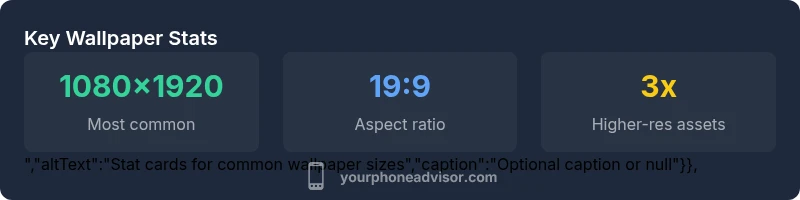
How big is a phone wallpaper? It should match your phone’s screen resolution and aspect ratio. Common sizes include 1080x1920 for many Androids and 1170x2532 for newer iPhones; newer devices may use 1440x3040. For best clarity, use the exact resolution or crop to the matching aspect ratio, with higher-resolution assets when possible.
What defines wallpaper size on a modern smartphone
When you ask how big is a phone wallpaper, the answer depends on two geometric properties: resolution and aspect ratio. The resolution is the number of pixels across the width and height, while the aspect ratio describes the shape. Most phones today use tall formats, typically 9:16 or 19:9 families. The image should match the display's density to avoid upscaling blur. In practice, designers create wallpapers at the device’s native resolution or slightly larger, cropped to the correct aspect ratio. By starting with exact dimensions, you minimize distortion, preserve color fidelity, and ensure full coverage on home and lock screens. According to Your Phone Advisor, matching native resolution provides the most faithful results across brands and models.
The role of resolution vs aspect ratio
Resolution and aspect ratio are the two levers that determine how a wallpaper fills the screen. Resolution guarantees detail, while aspect ratio ensures the image isn’t cropped awkwardly by the edges. A high-resolution image may look sharp on a 1080p display but still appear cropped if the aspect ratio differs. Conversely, a wallpaper with the exact aspect ratio but a low resolution can appear pixelated on a high-density screen. For modern devices, prioritize both: use an image that matches the device’s native aspect ratio and has a resolution at least as high as the display’s pixel count. This dual approach minimizes compression artifacts and preserves edge-to-edge coverage on both home and lock screens.
How to determine your device’s native size
Finding your device’s native wallpaper size involves checking the display specifications or measuring the screen resolution in your settings. On Android, navigate to Settings > Display > Screen resolution (or density) to identify current specs. On iPhone, reference the model’s display size and resolution from official documentation or Apple’s support pages. If you cannot locate exact numbers, start with common high-density sizes such as 1080x1920 or 1170x2532 and crop to maintain the correct aspect ratio. Recording your device model helps you quickly pull the precise values for future wallpaper design or download decisions.
Practical steps to create or crop wallpapers
- Determine the native resolution and aspect ratio of your device. 2) Choose or create a wallpaper image at or above that resolution. 3) In an image editor, crop to the target aspect ratio (e.g., 9:16 or 19:9) without distorting the subject. 4) Save in a lossless or high-quality JPEG/PNG to preserve details. 5) Test on both home and lock screens to confirm full coverage and no unintended letterboxing. 6) If using dynamic or animated wallpapers, ensure the device supports the feature without draining performance.
Common pitfalls: stretching, blur, and parallax
Stretching an image to fit a mismatched screen leads to warped content and blurred edges. Jumping between parallax effects can exaggerate seams where the image meets the UI, especially on devices with notch cutouts. Avoid oversized files that trigger aggressive compression, which reduces detail. When in doubt, crop rather than stretch to the target aspect ratio so important elements stay within the safe display area. For devices with parallax features, test both home and lock screen views, as motion can reveal cropping or alignment issues.
How wallpaper size interacts with display features
Display features—such as notch, punch-hole, or curved edges—alter the usable canvas. Some devices apply parallax depth that shifts the image as you swipe; this can reveal unintended edges if the wallpaper isn’t properly aligned. Similarly, high-refresh-rate displays can showcase subtle blur if the image isn’t high-resolution enough. In practice, aim for a wallpaper that fills the visible area without covering essential UI elements, and keep critical content away from edges where UI controls live. This approach ensures a clean look across different screen tech and software skins.
File formats, compression, and delivery tips
JPEG offers good compression with minimal quality loss for photographic wallpapers, while PNG preserves sharp edges for vector-like or text-heavy designs. For simple illustrations or icons, PNG with higher color depth can be advantageous. When possible, save at the device’s native color profile to minimize color shifts. If your wallpaper source is large, consider compressing to a balance of file size and quality, then preview on the actual device to verify fidelity and load times.
Testing and validation: previewing on hardware
Always preview wallpapers on the actual device whenever possible. Even with accurate pixel dimensions, scaling, color profiles, and display rendering can differ between editors and phones. If you can’t load the image directly, transfer via a trusted method or use a gallery app that preserves image metadata. Validate that the wallpaper looks sharp at full brightness, doesn’t impede legibility of icons, and remains centered without cropping essential details. This practical testing mirrors real-world usage and ensures consistently good results.
Common wallpaper sizes by resolution
| Phone Resolution | Ideal Wallpaper Size (px) | Aspect Ratio |
|---|---|---|
| 1080x1920 | 1080x1920 | 9:16 |
| 1440x3040 | 1440x3040 | 19:9 |
| 1170x2532 | 1170x2532 | 19.5:9 |
Got Questions?
What is the best wallpaper size for my phone?
The best size is your device’s native resolution cropped to the correct aspect ratio. If that exact size isn’t available, use the closest resolution that matches the aspect ratio to avoid stretching.
Use your device’s native resolution; crop to the correct aspect ratio for best results.
Does wallpaper size affect battery life?
Static wallpapers have negligible impact on battery life. Dynamic or animated wallpapers can use more CPU and drain power, so use them sparingly if battery is a concern.
Static wallpapers don’t affect battery much; animated ones can.
How can I find my phone’s wallpaper resolution?
Check the display specifications in your device’s settings or model documentation. Android users can view display resolution in Display settings; iPhone users can reference model specs on Apple’s support site.
Check your phone’s display settings or model specs.
Should I crop wallpapers before saving?
Yes. Cropping to the target aspect ratio before saving helps avoid distortion and ensures a perfect fit on home and lock screens.
Crop to the right aspect ratio before saving.
What if my wallpaper looks pixelated?
Use a higher-resolution image or crop to a smaller section of the image that fits the screen. Avoid enlarging small images beyond their native resolution.
Get a higher-res image or crop to fit.
Are there differences between home screen and lock screen wallpapers?
Most devices use the same image for both, but you may want to avoid placing critical content near the edges where widgets or notifications appear. Consider parallax effects if supported.
Usually the same image works for both, but crop for edge areas.
“Knowing the exact wallpaper size for your device ensures crisp visuals and avoids stretching or cropping surprises. Always start with the device’s native resolution and adjust for aspect ratio as needed.”
What to Remember
- Match the native resolution for best clarity
- Crop to the device aspect ratio, don’t stretch
- Test home and lock screen views on real hardware
- Use high-resolution images for high-density displays
- Be mindful of notch and parallax when cropping