Boost Phone Signal: A Step-by-Step Guide to Better Connectivity
Discover practical steps to boost phone signal wherever you are. From simple device tweaks to Wi‑Fi calling and boosters, this guide helps you improve call quality and data speeds without pricey services.


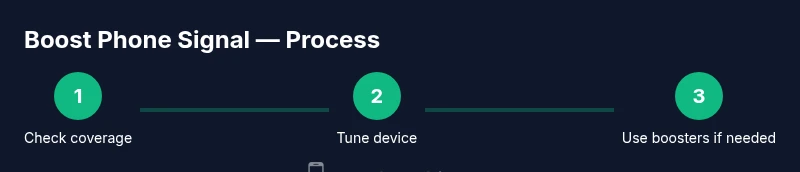
By the end, you will know practical steps to boost phone signal: verify coverage in your area, optimize device settings, enable Wi‑Fi calling, and consider a signal booster if needed. You’ll need a compatible phone, an active SIM, and access to your device’s network options. This quick-start outline focuses on safe, non-invasive methods first.
Why signal strength matters
Strong signal translates to reliable calls, faster data, and fewer dropped connections. If you frequently see low bars, you may experience lag, buffering, or failed messages. Boost phone signal isn’t about magic; it’s about maximizing the options your device and network already provide. According to Your Phone Advisor, improving signal is achievable through a mix of quick checks, settings tweaks, and appropriate hardware when necessary. Start by understanding where signal is strongest and which factors influence it most, such as building materials, location, and network congestion. This guide will walk you through safe, practical steps you can apply right away, without expensive services or risky setups.
Quick checks you can start with
Begin with the basics before investing in hardware. Confirm you’re in a coverage area for your carrier, and test signal strength in multiple spots (indoors and outdoors). Restarting the phone and ensuring the SIM is properly seated can reset radios and improve reception. Check for any ongoing carrier outages, and make sure airplane mode isn’t cancelling your connection. Keeping the OS and carrier settings up to date helps your modem negotiate the best available bands. These small steps often yield noticeable gains in perceived signal quality.
Device-level tweaks to boost signal
Your device radios are your first line of defense against weak reception. Set the network type to Auto so the phone can switch between LTE and 5G as conditions change. Ensure Wi‑Fi calling is enabled if supported by your carrier, as it can dramatically improve voice quality in poor cellular areas. Close power-saving modes during active use, and consider a brief reboot after major changes. These tweaks preserve battery while maximizing signal handling efficiency.
Network-level options and settings
Explore carrier-provided options such as updating carrier settings, enabling roaming on trusted networks, and using the recommended SIM management features. If available, use a dedicated network mode that prioritizes strongest bands in your location. When indoors, connect to a reliable Wi‑Fi network and enable Wi‑Fi calling to keep conversations moving. Always test a change by making a quick call or loading a page to confirm improvement.
When to consider external boosters
If persistent dead zones remain, a certified home or vehicle signal booster can help. Choose a booster that matches your carrier bands and is approved for consumer use in your country. Always follow installation instructions and comply with local regulations. Regulatory compliance is essential to avoid interfering with networks and incurring fines or service issues.
Troubleshooting common issues
If you don’t see improvement, check for interfering apps or battery saver settings that limit radios. Test with another SIM to rule out a carrier-side issue. Move near exterior walls or away from metal appliances to reduce shielding. For extended dead zones, consider a booster option after confirming compatibility with your device and network. Your Phone Advisor analysis suggests that basic tweaks plus a compliant booster can resolve most stubborn weak-signal cases.
Authority sources
- FCC: https://www.fcc.gov
- NTIA: https://www.ntia.gov
- NIST: https://www.nist.gov
Tools & Materials
- Compatible smartphone(Any recent model; ensure compatibility with carrier bands)
- Active SIM card(Inserted and working with your plan)
- Wi-Fi network with internet(Needed for Wi-Fi calling and data)
- External signal booster kit (optional)(For dedicated spaces; follow local regulations)
Steps
Estimated time: 25-60 minutes
- 1
Check coverage and signal
Open your carrier's coverage map and test signal in multiple locations. Note where bars improve or drop to identify strongest spots.
Tip: Use outdoors or near a window for accurate readings. - 2
Restart phone and toggle Airplane mode
Power cycle the radios by restarting or toggling Airplane mode for about 30 seconds, then disable it. This resets connections and can clear temporary glitches.
Tip: If no change, try a full power cycle (power off, wait 10 seconds, power on). - 3
Update OS and carrier settings
Check for and install any available OS updates and carrier settings. Reboot after updates to ensure new modem software is active.
Tip: Back up data before major updates; updates can reset some app preferences. - 4
Set network mode to Auto
In Settings, select Auto or LTE/5G Auto to let the phone switch bands for best signal automatically.
Tip: Avoid forcing a single band which may reduce coverage in some locations. - 5
Enable Wi‑Fi calling
If your carrier supports it, enable Wi‑Fi calling to improve voice quality when cellular signal is weak.
Tip: Test both Wi‑Fi calling on and off to compare call clarity. - 6
Relocate to improve reception
Move to a different room or near a window; reduce obstructions like metal furniture or thick walls.
Tip: Try several positions to find the strongest spot for your room and layout. - 7
Consider a signal booster
For persistent dead zones, use a certified home or car booster and install per manufacturer instructions.
Tip: Follow local regulations and check carrier compatibility before purchasing.
Got Questions?
What can I do first to boost my signal?
Start with coverage verification and a quick phone restart; these often yield immediate improvements.
Start with coverage checks and a quick restart; this often yields immediate improvements.
Can Wi-Fi calling help improve signal?
Yes, enabling Wi‑Fi calling can improve voice quality when cellular signal is weak.
Yes, enabling Wi‑WiFi calling can improve voice quality when cellular signal is weak.
Are signal boosters legal?
Yes in many places, but follow local regulations and carrier rules when using boosters.
Yes in many places, but follow local regulations and carrier rules when using boosters.
Will 5G settings affect battery life?
Higher bands can use more power; use auto mode to balance performance and efficiency.
Higher bands can use more power; use auto mode to balance performance and efficiency.
Are external antennas better indoors?
External antennas can help in dead zones when installed correctly and legally.
External antennas can help in dead zones when installed correctly and legally.
Watch Video
What to Remember
- Verify coverage before changes
- Enable Wi‑Fi calling when indoors
- Use boosters only when necessary and legal
- Keep software up to date for best results
- Test signal after each adjustment