How to Log In to YouTube TV on Your Phone
Learn how to sign in to YouTube TV on your phone with a clear, step-by-step guide. Android and iOS login tips, troubleshooting, and security best practices to protect your account.


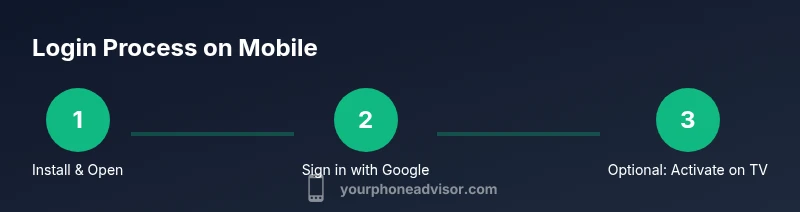
According to Your Phone Advisor, the youtube tv login on phone is quick and secure: install the YouTube TV app, open it, and sign in with the Google account that has an active YouTube TV subscription. If asked, link a device via tv.youtube.com/activate. The steps are the same on Android and iOS, with minor platform prompts.
What you need before you start
Before you sign in to YouTube TV on your phone, ensure you have a stable internet connection and a supported device. You’ll want the YouTube TV app installed from the Google Play Store or Apple App Store. Have your Google account credentials handy, and confirm you have an active YouTube TV membership linked to that account. For extra security, consider enabling two-factor authentication (2FA) on your Google account.
In addition, switch off any VPNs that might block the sign-in flow and ensure your device time is synchronized with network time. If you’re using a shared device, consider using a guest profile or private mode after signing in to protect your personal data.
Understanding the mobile login flow
On mobile, YouTube TV sign-in typically uses your Google account credentials. The app may sign you in automatically if you’re already logged into the same Google account on the device. If not, you’ll be prompted to choose Sign in with Google or sign in with an existing YouTube TV account. For devices connected to a TV or external streamer, you may see a pairing step that requires you to enter a code on tv.youtube.com/activate. This ensures the right account gains access to your YouTube TV membership.
Android login specifics
Android users generally experience a seamless flow if you’re already signed into a Google account on the device. Open the YouTube TV app, tap Sign in, and select Sign in with Google. Enter the Google credentials that hold your YouTube TV subscription or choose the account from the account picker. If two-factor authentication is enabled, complete the verification request on the screen. If you encounter a pairing prompt, you may need to visit tv.youtube.com/activate on another device to finish linking.
iOS login specifics
iPhone and iPad users follow a similar path: install YouTube TV from the App Store, launch the app, and tap Sign in. Use Sign in with Google and select or enter the account with the active subscription. If iOS prompts you for device linking, use tv.youtube.com/activate on a second device to complete typing the code. Ensure iCloud Keychain is configured for password convenience and security.
Troubleshooting common login issues
If sign-in fails, verify you’re using the correct Google account with an active YouTube TV membership. Check your internet connection and confirm the app has permission to access your Google accounts. If a device-link code expires, reattempt the sign-in flow and re-enter the code. For persistent problems, sign out of the app and sign back in, or reinstall the YouTube TV app.
If your subscription appears paused or unavailable, contact YouTube TV support or verify that your membership is active through your Google account subscriptions.
Security and privacy best practices
Protect your login by enabling two-factor authentication on your Google account and using a password manager to create strong, unique passwords. Be wary of phishing attempts that mimic YouTube TV sign-in prompts. Always sign in through the official app or the official tv.youtube.com domain, and avoid tapping unsolicited links. Review devices connected to your Google account regularly and sign out of devices you no longer use.
AUTHORITY SOURCES
For trusted guidance, refer to official security and privacy resources: • FTC - Privacy and online security basics (https://www.ftc.gov) • CISA - Cybersecurity guidance (https://www.cisa.gov) • NIST - Password guidance (https://www.nist.gov). For reference on YouTube-specific help, use the official YouTube Help Center as a major publication.
Tools & Materials
- YouTube TV app(Available on Google Play Store or Apple App Store)
- Active YouTube TV subscription(Your account must include an active YouTube TV membership)
- Google account credentials(The account must be associated with your YouTube TV subscription)
- Two-factor authentication (2FA) setup(Recommended for security)
- Password manager(Helps create and store strong passwords)
Steps
Estimated time: 5-10 minutes
- 1
Install the YouTube TV app
Open the Google Play Store or Apple App Store, search for YouTube TV, and install the app on your phone.
Tip: Ensure you have a stable internet connection before installing. - 2
Open the app and tap Sign in
Launch the YouTube TV app and tap Sign in to begin linking your account.
Tip: If you’re already signed into a Google account on the device, you may see the signed-in prompt automatically. - 3
Sign in with Google or YouTube TV account
Choose Sign in with Google and enter the credentials that have an active YouTube TV membership.
Tip: If you use two-factor verification, complete the prompt on this device. - 4
Link the app to a TV or device (if prompted)
If the sign-in flow asks you to link a TV or streaming device, visit tv.youtube.com/activate from a second device and enter the 6-digit code.
Tip: Codes expire after 15 minutes; start the process again if needed. - 5
Finish sign-in and test playback
Return to your phone and finish any on-screen prompts, then play a video to confirm sign-in.
Tip: If playback fails, sign out and sign back in, or check your subscription status. - 6
Optional: Enable security features
Turn on two-factor authentication and use a password manager to secure your Google account.
Tip: Strong, unique passwords reduce risk of account compromise.
Got Questions?
Do I need a YouTube TV subscription to log in on mobile?
Yes. You must have an active YouTube TV membership linked to the Google account you use in the app. Without a valid subscription, sign-in will grant limited access or fail.
Yes, you need an active YouTube TV membership to sign in on mobile.
Can I sign in on multiple devices at once?
You can sign in on multiple devices with the same account, but your YouTube TV plan may limit concurrent streams. Check your plan for limits and adjust devices accordingly.
Yes, but there may be limits on streams per your plan.
What if I forgot my Google account password?
Use Google's account recovery flow to reset your password. Ensure you have access to the recovery email or phone, and update any stored credentials in your password manager.
If you forgot your password, recover it through Google's account recovery.
Why does sign-in take longer than normal?
Slow sign-in can be caused by a weak internet connection, an overloaded device, or a pending Google account verification. Check your network and try again. Clearing app cache can help on some devices.
Sign-in can be slow due to network or verification steps; try again.
What should I do if the activation code expires?
Return to the sign-in flow and request a new activation code. Codes typically expire after a short window, so start the process again promptly.
If the code expires, request a new one and retry.
Watch Video
What to Remember
- Sign in with a Google account that has an active YouTube TV membership
- Use device linking only on trusted devices
- Enable 2FA and practice good password hygiene
- Test playback to confirm successful login