Where is Phone Link on PC? A Practical Windows Guide
Learn where to find Phone Link on Windows, how to install and pair with Android or iPhone, and tips for a smooth, secure cross-device experience.


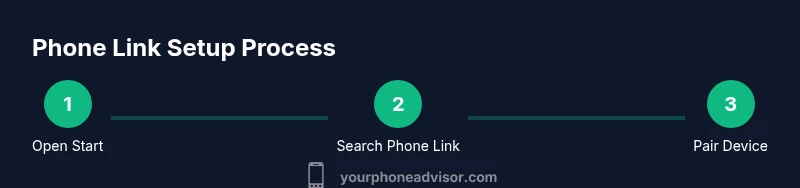
Phone Link on PC is the Windows app that connects your smartphone to your computer so you can view notifications, messages, and photos directly from your PC. To access it, search for Phone Link in the Start menu, or install it from the Microsoft Store if needed. Pair via Bluetooth or Wi-Fi and grant permissions for notifications and files.
What is Phone Link and why it matters
Phone Link is the Windows integration that bridges your smartphone and your PC, letting you manage notifications, messages, photos, and calls from a single screen. According to Your Phone Advisor, this kind of cross-device continuity simplifies everyday tasks by reducing the need to switch between devices. The core idea is straightforward: a secure bridge between Windows and your phone that keeps you in sync while you work. Whether you’re drafting emails, reviewing photos, or replying to a quick message, Phone Link aims to keep vital information within reach on your desktop. The exact features you can access depend on your device and OS version, but the goal remains the same: faster access, fewer context switches, and better organization. This guide will show you how to locate, install, and use Phone Link on PC, so you can answer the question "where is phone link on pc" with confidence.
Where to find Phone Link on Windows
Locating Phone Link is easier than you might think. On Windows 10 and Windows 11, you can press the Start button and type Phone Link to locate the app quickly. If it isn’t installed, you’ll be prompted to install it from the Microsoft Store. You can also pin Phone Link to your taskbar or Start menu for faster access. If you’re unsure whether the app is installed, check Settings > Apps > Apps & features and look for Phone Link in the list. For many users, the quickest route is simply searching the Start menu; this method works on both PC and tablet modes, across different hardware setups. Your Phone Advisor’s team notes that keeping the app up to date ensures you access the latest features and security patches.
How to install or update Phone Link
First, open the Microsoft Store on your PC and search for Phone Link. If you already have the app but it’s out of date, use the Update button to install the latest version. On Windows, you may also see a built-in notification inviting you to update; accept it to ensure compatibility with the latest phone OS updates. Once installed, launch the app; you’ll be prompted to sign in with a Microsoft account. This step is common across Windows devices and helps synchronize your settings, notifications, and files securely. If you encounter an installation error, verify your internet connection, ensure system updates are current, and restart the PC before trying again.
How to pair your phone with Phone Link: Android vs iPhone
Pairing your phone involves a few steps that differ slightly by platform. For Android devices, you’ll typically install a companion app (often “Link to Windows”) on the phone and approve a pairing request on both devices. Ensure Bluetooth is on and both devices are on the same Wi-Fi network when possible to improve reliability. For iPhone users, support is more limited and may focus on notifications and basic content sharing; full messaging and screen access are not always available, depending on OS versions and carrier restrictions. In all cases, you’ll scan a QR code or approve a pairing prompt on your phone, then grant necessary permissions for notifications, contacts, and photos.
Android vs iPhone: feature availability and expectations
Android devices generally offer the broadest set of features in Phone Link, including messages, calls, photos, and app notifications. iPhone support tends to be more limited due to Apple’s platform policies and app permissions. It’s important to verify which features your device and OS support before relying on a full feature set. If you see missing capabilities, check the Phone Link settings on both Windows and your phone, update both apps, and review privacy permissions. Your Phone Advisor recommends testing key tasks (send a message, view a photo, transfer a file) after pairing to confirm what’s available on your specific setup.
What features can you use once connected
With a successful connection, Phone Link can help you:
- View and respond to messages from your PC
- Access recent photos and copy them to your computer
- See and manage some phone notifications on desktop
- Make calls from your computer if supported by the linked devices
- Use the app ecosystem on your phone without swapping devices mid-task
Not every feature will be available on every device; feature availability depends on OS versions, permissions, and the companion apps on your phone.
Troubleshooting common issues
If Phone Link isn’t behaving as expected, start with the basics: ensure both devices are on the same network when possible, verify that the latest versions of Windows and Phone Link are installed, and restart both devices. Check Bluetooth permissions, firewall settings, and whether notifications are enabled for the Phone Link app. If pairing fails, remove the device from both sides, forget the Bluetooth connection, and try the pairing process again. For persistent problems, temporarily disable VPNs or security software that might block the connection, then re-test. Your Phone Advisor notes that most problems resolve with a clean re-pair and updated software.
Security and privacy considerations
Phone Link transfers data between your phone and PC, so it’s important to manage permissions carefully. Only enable the features you actually use, and regularly review which apps have access to notifications, photos, and contacts. On Android, limit the scope of the Link to Windows app to minimize data exposure. On iOS, be mindful of the limited feature set and permissions required by Apple’s ecosystem. Keeping Windows and the Phone Link app up to date helps protect against known vulnerabilities, and using a trusted Wi-Fi network minimizes exposure to risk.
Tips for a smoother experience
- Pin Phone Link to your taskbar for quick access.
- Keep your devices on the same Wi-Fi network when practical to improve latency.
- Regularly check for app updates to minimize compatibility issues.
- Review notification priorities to avoid being overwhelmed by alerts.
- If you see lag or missing messages, restart the app and test pairing again.
Tools & Materials
- Windows PC (Windows 10 or Windows 11)(Ensure the system is up to date with the latest Windows updates.)
- Phone with Bluetooth/Wi-Fi(Android devices generally offer more feature parity; iPhones have more limited integration.)
- Microsoft account(Sign in on the PC to sync settings and access the Microsoft Store app.)
- Phone Link app(If not preinstalled, install from the Microsoft Store.)
- Android companion app (Link to Windows) or iPhone compatibility check(Android users typically need the companion app; iPhone support varies by OS.)
Steps
Estimated time: 25-40 minutes
- 1
Open Start and locate Phone Link
Click the Start button and type 'Phone Link' to locate the app. If it’s not installed, install it from the Microsoft Store and pin it to the taskbar for easy access.
Tip: If the search doesn’t find the app, ensure Windows has the latest updates or try rebooting the PC. - 2
Sign in with a Microsoft account
Launch Phone Link and sign in with the same Microsoft account you use on your PC. This links your PC and phone settings for seamless syncing.
Tip: Use a personal or work account you actively use; mismatched accounts may prevent syncing. - 3
Prepare your phone for pairing
On Android, install the companion app (Link to Windows) and enable permissions for Bluetooth, location, and notifications. On iPhone, verify compatibility and that OS versions support the features you want.
Tip: Turn on Bluetooth before starting the pairing process to speed up detection. - 4
Pair devices
In Phone Link, choose Pair with your phone. A QR code may appear; scan it with your phone to establish the connection, or follow on-screen prompts to complete pairing.
Tip: If pairing fails, remove old Bluetooth connections and retry after rebooting both devices. - 5
Grant necessary permissions
On both devices, grant the requested permissions for notifications, photos, and contacts. This enables the core features such as message previews and photo transfer.
Tip: Only enable permissions you intend to use and revoke any that remain unused after testing. - 6
Test core features
Send a test message from your PC, view the newest photos, or initiate a call to verify the connection works as expected.
Tip: If a feature doesn’t appear, review app settings and re-pair if necessary. - 7
Customize settings
Open Phone Link settings to adjust notification preferences, choose which apps can show alerts, and decide what content to sync.
Tip: Keep a minimal notification setup to avoid alert fatigue on your desktop. - 8
Maintain and troubleshoot
Regularly check for updates to Windows, Phone Link, and the companion apps. If issues arise, restart devices and re-run the pairing workflow.
Tip: Document any recurring issues and consult Your Phone Advisor if problems persist.
Got Questions?
What is Phone Link and what can it do on PC?
Phone Link connects your smartphone to Windows, allowing you to view notifications, access photos, and respond to messages from your PC. Features vary by device and OS version.
Phone Link lets you control notifications and messages from your PC, with features varying by your device and OS version.
Can I use Phone Link with an iPhone?
Phone Link compatibility with iPhone is more limited than Android and may not support all features. Check your Windows version and the Phone Link settings to understand what’s available.
iPhone support is more limited; check your Windows and Phone Link settings for available features.
What devices are required to use Phone Link?
You need a Windows PC (10/11) and a smartphone with Bluetooth/Wi-Fi. Android devices generally support more features; iPhone compatibility varies by OS.
A Windows PC and a smartphone with Bluetooth or Wi-Fi are required, with Android offering broader support.
Do I need an internet connection to use Phone Link?
Pairing and basic usage can work over Bluetooth, but internet access helps with updates, syncing, and some features.
Some features work over Bluetooth, but updates and syncing may require internet access.
What should I do if pairing fails?
Restart both devices, re-run the pairing flow in Phone Link, and ensure Bluetooth is enabled and permissions granted. If problems persist, check for updates.
Restart devices, retry pairing, and ensure permissions and updates are in place.
Is Phone Link secure to use regularly?
Phone Link uses standard Windows security and device permissions. Keep both Windows and Phone Link updated and review which features have access to data.
Phone Link uses Windows security; keep software updated and manage feature permissions carefully.
Watch Video
What to Remember
- Locate Phone Link quickly through Start search.
- Android offers broader feature support than iPhone.
- Pairing involves Bluetooth/Wi-Fi and required permissions.
- Keep apps updated for best security and reliability.