Phone is On but Screen is Black: Your Quick Troubleshooting Guide
A practical, step-by-step guide to diagnose and fix a phone that is on but the screen remains black. Learn safe DIY fixes, when to seek professional help, and how to prevent future screen issues.


If the phone is on but the screen is black, start with simple steps: force restart, let it charge for 15 minutes, and check for a responsive UI by attempting a soft reset. Boot into recovery or safe mode if available, then evaluate if this is a software fault. If these steps don’t restore display, professional repair may be required.
Why this happens and why it matters
When a phone is on but the screen is black, it often signals a software hang, a display backlight issue, or a loose internal connection. According to Your Phone Advisor, a black screen on an otherwise powered device is frequently software-related and fixable with methodical troubleshooting. Your Phone Advisor analysis shows that most cases stem from software glitches rather than outright hardware failure, especially on recent models. Recognizing the distinction between a software freeze and a hardware fault helps you avoid unnecessary repairs and save time and money. In 2026, staying calm and following a structured plan remains the most effective path to recovery.
Quick checks you can perform without tools
- Press and hold the power button for 10–15 seconds to force a restart. If the display comes back, you may simply have a transient issue.
- Connect to a charger with a known-good cable and charger; look for any sign of life on the screen or a charging indicator.
- Try a long press of volume up + power (if your model supports it) to trigger a reboot or to enter a hidden hardware test.
- If you have a second screen option (external display, wireless casting), try mirroring or casting to rule out a display panel fault.
- Check for moisture, extreme heat, or obvious physical damage, but avoid pressing hard on the screen or applying force to internal components.
These steps help you quickly decide whether the problem is software or hardware-related. If nothing responds, move to the diagnostic flow below and consider professional service if the issue persists.
Diagnostic flow: symptom → potential causes → practical fixes
Symptom: Screen remains black while device is powered on. Potential causes range from software freezes and unsafe shutdowns to backlight faults and loose connectors.
Possible causes and how to assess them:
- Software crash or boot loop (high likelihood): restart, safe mode, factory reset if data is backed up.
- Display backlight or inverter failure (medium): backlight test and service check required.
- Loose screen connector or ribbon cable (low): needs technician to reseat connections.
- Physical drop damage affecting the display (low): professional assessment needed.
Fixes to try in order:
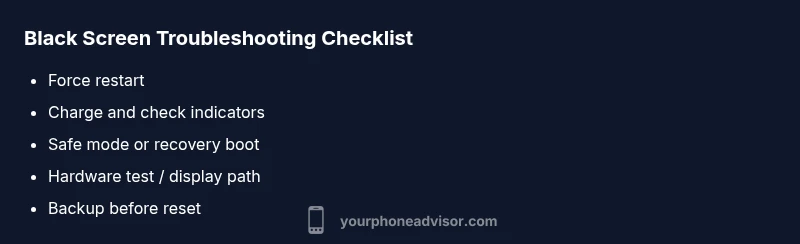
- Force restart and charge to rule out a temporary boot issue.
- Boot into safe mode or recovery to test software integrity.
- If device responds to touch but not the display, the issue is likely a display or backlight fault.
- If it won’t boot at all or remains blank after all software tests, back up data if possible and seek professional repair.
Step-by-step: targeted fixes for the most common cause
- Force restart the device to recover from a frozen screen.
- Charge the phone with a known-good charger for at least 15 minutes to rule out a dead battery icon masking the display.
- Boot into safe mode to determine if third-party apps are causing the issue.
- Access recovery mode to perform a cache wipe or factory reset if data backup exists.
- If the screen stays black, test the display with an external monitor or service test to isolate hardware faults.
- Seek professional repair if hardware fault is suspected or if software fixes fail.
Tip: Always back up data if you can before performing factory resets. If you’re uncomfortable performing any step, skip to professional help.
Safety notes and common mistakes to avoid
- Do not repeatedly press hard on the screen or attempt to pry the display; this can worsen a latent hardware fault.
- Avoid using warm air or heat to fix display issues; it may damage internal components.
- Don’t ignore nonresponsive devices: continuing to try risky hardware work can void warranties.
- Always use official chargers and certified cables to prevent charging-related issues.
These cautions help prevent accidental damage and ensure you don’t misdiagnose a hardware problem as a software issue.
Prevention and long-term care for black-screen issues
- Keep your OS up to date to minimize software freezes that can manifest as black screens.
- Regularly restart your phone to reset temporary caches and keep processes fresh.
- Maintain battery health with proper charging habits and avoid extreme temperatures.
- Use a reputable mobile security app to monitor for malware or rogue updates that could disrupt the boot process.
- Create periodic backups so you can recover quickly if a factory reset becomes necessary.
A proactive maintenance routine reduces the likelihood of future black-screen events and speeds up recovery when problems arise.
When to seek professional help and what to expect
If none of the at-home fixes restore the display, it’s time to consult a professional. A technician can run hardware diagnostics to check the display panel, backlight, and internal cables, and confirm if the fault is hardware-related. Expect a diagnostic fee, followed by an estimate for repair or screen replacement if needed. The sooner you seek help after a persistent blank screen, the better your chances of preserving data and device longevity.
Steps
Estimated time: 60-120 minutes
- 1
Force restart
Hold the power button (and volume down on some models) for 10–15 seconds until the device reboots. This clears temporary glitches that can cause a blank screen.
Tip: If the screen remains black, move to step 2. - 2
Charge and observe
Connect the charger and wait 15 minutes while watching for any charging indicator or vibration. This helps determine if the device is simply unresponsive due to a drained battery.
Tip: Use a known-good charger and cable. - 3
Try safe mode or recovery
Boot into safe mode (Android) or recovery mode (iOS) to check if a software issue is causing the black screen. If the screen shows in these modes, a third-party app or system issue is likely.
Tip: Refer to your model’s manual for exact button combinations. - 4
Test the display path
If possible, connect to an external display or use any built-in display tests to check backlight function. A response from external display points to a panel/backlight fault.
Tip: External tests vary by model; consult the user manual. - 5
Backup and reset if software issue is suspected
If safe mode/recovery didn’t help, back up data and perform a factory reset. This eliminates software corruption but erases data, so ensure a backup first.
Tip: Pre-check cloud backups or computer backups. - 6
Seek professional repair if hardware fault is suspected
If hardware failure is suspected (backlight, display connector, or panel), a technician can diagnose and replace components as needed.
Tip: Request warranty coverage or a formal estimate.
Diagnosis: Phone is on but screen remains black
Possible Causes
- highSoftware crash or boot issue
- mediumDisplay backlight or LCD fault
- lowLoose or damaged internal connection
- lowPhysical damage after a drop
Fixes
- easyForce restart and ensure the device is charging
- easyBoot into safe mode or recovery to test software integrity
- mediumBack up data and perform a factory reset if software corruption is suspected
- hardInspect hardware connectors or perform professional display diagnostics
Got Questions?
What should I try first if my phone screen goes black?
Start with a force restart and a gentle check of the charging setup. If the screen remains black, boot into safe mode or recovery to test software. Hardware faults require professional inspection.
Try a force restart first, then test software in safe mode. If the screen stays blank, you likely need professional help.
Can a black screen be fixed without replacing the display?
Yes, many black-screen issues are software-related and can be resolved without replacing the display. If software fixes fail, hardware assessment is needed.
Often software fixes fix the screen without replacing hardware; if not, hardware checks are required.
Is it safe to factory reset my phone to fix a black screen?
Factory reset can fix software issues but erases data. Back up first if possible, then reset and reinstall apps. If the problem persists, seek professional help.
Back up your data, then consider a factory reset. If the screen is still blank, contact a technician.
What signs indicate a hardware display problem?
Indicators include a completely blank screen with no backlight, physical screen damage, or unusual panel flicker. External display tests helping confirm hardware faults.
If there’s no backlight or visible panel behavior, it’s likely hardware.
Should I attempt to fix a black screen myself?
It’s risky to open the device yourself. Only proceed with guidance and proper tools; otherwise, seek a professional repair to avoid voiding warranties.
DIY fixes can be risky—professional help is safer for hardware faults.
How long does a screen repair typically take?
Repair time varies by model and availability of parts. A diagnostic visit followed by a screen replacement can take a few hours to a few days depending on parts.
Diagnostics and parts availability determine repair time; plan for a few hours to days.
Watch Video
What to Remember
- Identify whether the issue is software- or hardware-related
- Start with safe, low-risk fixes before hardware checks
- Back up data before any reset or repair
- Seek professional help for hardware faults promptly