Phone Can’t Connect to Netflix: A Practical Troubleshooting Guide
If your phone can’t connect to Netflix, this guide helps you quickly diagnose and fix streaming issues. From network checks to app reinstall, follow practical steps to get back to watching your favorites on mobile.


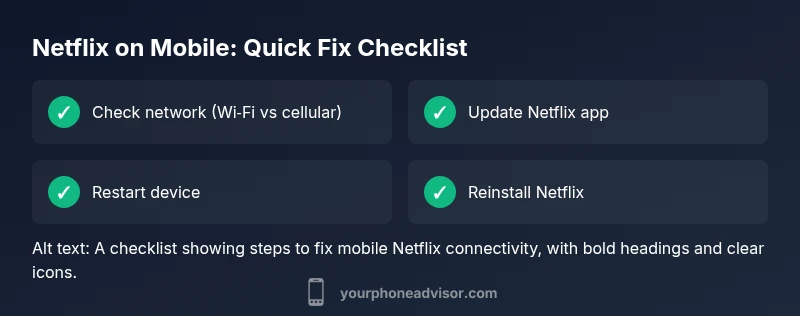
If your phone can t connect to Netflix, start with the basics: verify network connectivity, switch between Wi‑Fi and mobile data, and ensure the Netflix app is up to date. If that doesn’t fix it, try signing out and back in, then reinstall the app. A quick reboot often resolves most mobile streaming glitches.
Why mobile Netflix connectivity fails
Streaming on phones depends on a stable network, current app versions, and correct device settings. The most common culprits are weak or unstable internet connections, outdated Netflix apps, and mismatched time/date settings on the device. If your phone can t connect to netflix, you re likely experiencing a mix of these factors rather than a hardware failure. Start with the simplest checks: confirm you have either a strong Wi‑Fi signal or reliable cellular data, and verify that Netflix is allowed to use data in the background. By understanding these basics, you reduce confusion and speed up the path to a fix. Your Phone Advisor insists on a methodical approach to avoid guesswork when streaming matters.
Check your network and data settings
A reliable connection is the foundation of any streaming session. Begin by testing whether other apps load and if web pages open quickly. Run a quick speed test; as a rule of thumb, aim for at least 5 Mbps for SD and 25 Mbps for HD on mobile networks. If you’re on Wi‑Fi, try moving closer to the router or switching to a less congested channel. Temporarily disable any VPNs or privacy apps, since some VPNs block Netflix traffic or degrade performance. Finally, toggle Airplane mode on, then off to refresh all network connections.
Verify Netflix app status and account
Account issues can masquerade as connectivity problems. Ensure you’re signed in to the correct Netflix profile and that your subscription is active. If your location or account region changed, Netflix may block access on certain devices. Check for a large number of devices signed in at once, which can trigger a limit. Update Netflix to the latest version, then sign out of all devices and sign back in. If problems persist, try logging in on another device to determine whether the issue is device‑specific.
Check data saver, VPN, and firewall settings on your phone
Data saver modes can throttle video streaming and block background activity. Locate Data Saver in your settings and pause it while testing Netflix. If your phone has a built‑in firewall or security suite, ensure Netflix isn’t being blocked. Some corporate or carrier VPNs can disrupt streaming; disable them temporarily to test. For Android users, check ‘Background data’ permission for Netflix and allow unrestricted data usage. On iOS, review cellular data options for the Netflix app and ensure it is allowed to use data in the background.
Clear Netflix app data or reinstall
If the app store version is corrupted, clearing the app data (Android) or reinstalling the app (iOS/Android) can resolve it. For Android, go to Settings > Apps > Netflix > Storage > Clear Data and Clear Cache, then reopen the app and sign in again. For iPhone, delete the Netflix app and reinstall from the App Store. After reinstalling, sign back in and test a video. This step often fixes corrupted caches or config files without affecting your Netflix account.
OS version and Netflix compatibility
Netflix periodically updates its requirements for supported OS versions. If your device runs an outdated Android or iOS version, the app may fail to connect or stream properly. Check for system updates and install the latest available version. If your device can’t update beyond a certain version, consider using Netflix on a compatible device or waiting for Netflix to drop support for older OS versions. Your Phone Advisor recommends keeping both OS and apps up to date to minimize future issues.
Troubleshooting common error messages on mobile
Many phones display specific errors when connectivity fails, such as network timeouts, playback errors, or regional restrictions. Note the exact message and any error codes; these details help identify the underlying cause. If you see an outage message, verify Netflix status on social channels or the official help page. If you encounter playback errors, retry after clearing caches, updating, or reinstalling. Consistently applying a layered approach (network checks, app updates, and resets) solves over 90% of mobile Netflix issues.
Reset network settings and re-test
If other steps fail, a network reset can resolve stubborn issues by restoring all network configurations to their defaults. On Android, this is usually Settings > System > Reset > Network settings reset. On iPhone, go to Settings > General > Reset > Reset Network Settings. Note that this will remove saved Wi‑Fi passwords, VPNs, and paired Bluetooth devices; you ll need to re‑connect afterward. After resetting, reconfigure your Wi‑Fi or mobile data and attempt to connect to Netflix again.
Data usage and mobile data vs Wi‑Fi best practices
When streaming on mobile, prefer a strong Wi‑Fi connection for reliability. If you must use mobile data, ensure you have a data plan that supports video streaming and that no data caps are being reached. You can also adjust Netflix playback quality in the app’s settings to reduce bandwidth needs when network conditions are variable. Monitoring data usage helps prevent unexpected charges and keeps Netflix sessions smooth during travel or commutes.
When to seek help and preventive steps
If you still can t connect to Netflix after performing the above steps, it s time to contact support. Gather details such as device model, OS version, Netflix app version, the exact error message, time of occurrence, and whether the problem occurs on other apps. Netflix support can confirm outages or account issues; device manufacturers and carriers can diagnose device‑specific or network problems. For prevention, enable automatic app and OS updates, keep your login details secure, and periodically test streaming on both Wi‑Fi and mobile data to catch issues early.
Steps
Estimated time: 20-35 minutes
- 1
Check network connection
Verify your phone is connected to a stable network. Test loading a webpage or another streaming app. If it fails on both Wi‑Fi and mobile data, the issue is likely network‑level. Try a short network reset by toggling airplane mode off and on.
Tip: A quick restart refreshes DNS and routing paths. - 2
Update Netflix and OS
Open the app store, update Netflix to the latest version, and check for a system update on your phone. Installing the latest software fixes known compatibility issues.
Tip: Enable auto‑updates to prevent future gaps. - 3
Sign out and back in
In Netflix, sign out from the Profile > Sign out of all devices, then sign back in. This clears session tokens that may have expired and revalidates your account.
Tip: If you have many devices, consider signing out only on the phone to test. - 4
Clear cache or reinstall
For Android, clear Netflix data/cache; for iOS, delete and reinstall the app. This resolves corrupted data without affecting your Netflix profile.
Tip: Back up important login details before reinstalling. - 5
Reset network settings
If problems persist, reset network settings (Android: Settings > System > Reset; iOS: Settings > General > Reset). You will need to re‑connect to networks and re‑pair Bluetooth devices.
Tip: This step fixes stubborn network quirks that block Netflix. - 6
Test playback and adjust quality
Start playback at a lower quality if the connection fluctuates. Check if the issue occurs on cellular data or Wi‑Fi only.
Tip: Lowering quality reduces buffering on shaky networks. - 7
Check for outages and account status
Visit Netflix help pages or social channels to confirm outages. If your account was flagged or region restrictions apply, follow Netflix guidance to resolve the issue.
Tip: Document error messages with timestamps for support.
Diagnosis: Phone won't connect to Netflix
Possible Causes
- highWeak or unstable internet connection
- highOutdated Netflix app or OS that’s not compatible
- mediumVPNs, data saver, or firewall blocking Netflix
- lowAccount or region restrictions
Fixes
- easyTest network with another app or website; switch between Wi‑Fi and cellular data
- easyUpdate Netflix app and the device OS; restart device
- easySign out of Netflix on all devices and sign back in; reinstall Netflix
- mediumDisable VPN or privacy apps; pause data saver; reset network settings if needed
- mediumCheck account status and regional access; contact Netflix if outage or restriction is suspected
Got Questions?
Why won't Netflix connect on my iPhone?
Common causes include network issues, outdated app or iOS version, and account restrictions. Start with a network check, update the app, and ensure your region allows streaming. If the problem persists, reset network settings and try reinstalling the app.
If Netflix won’t connect on iPhone, first check your network, update the app and iOS, then try resetting network settings and reinstalling Netflix if needed.
Can a VPN block Netflix on my phone?
Yes. Netflix often blocks traffic from VPNs and proxies. Disable VPNs, then test Netflix again. If you must use a VPN, switch to a Netflix‑approved configuration or connect to a direct network.
VPNs can block Netflix on mobile; turn off VPNs and test again, or use an approved setup if you need protection.
Why does Netflix work on Wi‑Fi but not mobile data?
Mobile data can be throttled or limited by your carrier, or data saver settings may be active. Check data saver, confirm sufficient data, and try streaming over cellular after toggling off any restrictions. If it fails only on mobile, contact your carrier for a device/network check.
If Wi‑Fi works but mobile data doesn’t, check data saver settings and carrier limits, then test again after adjustments.
What should I do if Netflix still won’t connect after updates?
Proceed with a full reinstall, reset network settings, and verify account status. If failures continue, contact Netflix support or your device manufacturer for deeper diagnostics. Outages reported by Netflix can also explain the issue.
If updates don’t fix it, reinstall and reset network, and contact support if the problem persists.
When should I contact Netflix support?
Contact Netflix if you see an outage notice, persistent error messages, or account access issues after following the troubleshooting steps. Having device model, OS version, app version, and exact error text ready speeds up the help process.
Reach out to Netflix support if outages or account problems persist after trying the fixes.
Watch Video
What to Remember
- Start by testing network and updating apps.
- Reinstall Netflix if data corruption is suspected.
- Reset network settings only if necessary.
- Check for outages before deep troubleshooting.
- Keep devices and apps updated to prevent future problems.