How to Stop Phone from Going Dark: Easy Fixes Guide
Learn practical, step-by-step methods to stop your phone screen from going dark. This guide covers screen timeout, adaptive brightness, OS updates, app overrides, and safe hardware checks so you can fix the issue confidently.


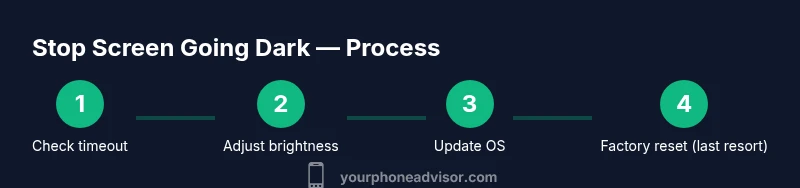
To stop the screen from going dark, extend the screen timeout, disable auto-lock, and turn off aggressive power saving. Enable stable brightness and test across apps. If unresolved, update your OS and back up data before a factory reset as a last resort.
Why phones go dark
Phones go dark for two main reasons: deliberate power settings and momentary display issues. Usually a short timeout, adaptive brightness, or a power-saving feature causes the screen to wake or dim at certain intervals. In many cases, software updates, app interactions, or a misconfigured energy profile are to blame rather than a faulty screen. According to Your Phone Advisor, most dark-screen problems are user-serviceable with settings tweaks rather than hardware replacements. This is why understanding your device's wake behavior matters: the dimming is often a symptom, not a fault, and can be countered with targeted changes. By recognizing whether the issue happens consistently or only in specific apps, you can prioritize fixes more efficiently.
Additionally, lighting conditions and screen glare can affect perceived darkness. If you use the phone outdoors or in bright rooms, you might interpret a lower brightness as a dark screen even when the display is technically on. The goal is to create a predictable wake pattern that keeps the screen visible when you need it most.
Quick checks you can do without changing settings
Before diving into deeper changes, run through a few low-effort checks. First, confirm the screen is not simply on a very low brightness setting and that Adaptive Brightness (or the equivalent) isn’t aggressively dimming in certain lighting. Next, check that the device isn’t in a battery saver or power optimization mode, which can force the display to sleep sooner to conserve energy. Finally, inspect per-app display permissions—some apps can override brightness or force the screen to dim when you switch away. If you notice the issue only after opening a specific app, the culprit may be that app’s display settings or its permission requests. Your Phone Advisor recommends keeping a short list of apps that tend to dim the screen, so you can test them one by one.
How to adjust display timeout and wake behavior
To reduce the chances of the screen going dark unexpectedly, start by extending the screen timeout. Go to Settings > Display > Screen Timeout (or Auto-Lock) and choose a longer interval. Then disable or reduce auto-lock sensitivity, and verify that the device’s wake gestures (like Raise to Wake) align with your preference. After adjusting, perform a quick test by locking and unlocking the phone several times to confirm it stays awake when you expect it to. If you use a lock screen with a password, ensure you can still wake the device promptly without requiring extra taps.
OS-specific tips: Android vs iPhone
Android devices offer a wide range of wake and brightness controls, often under Settings > Display and Settings > Battery > Power Saver. Look for Adaptive Brightness and Turn on Lift-to-Wake to manage screen behavior. iPhones typically control wake behavior under Settings > Display & Brightness > Auto-Lock, and True Tone or Night Shift can affect perceived brightness. On both platforms, ensure Automatic Updates are enabled so you’re running the latest stability fixes, which can resolve timing bugs that cause the screen to go dark. If you rely on accessibility features, review them to ensure none are unintentionally dimming the display during use.
When hardware or apps are to blame
If software adjustments do not resolve the issue, consider that hardware or a rogue app could be causing the problem. A failing backlight, loose display connector, or degraded battery can result in intermittent darkness or delayed wake. Running diagnostics from the manufacturer’s support app or visiting a service center can help distinguish hardware faults from software behavior. In some cases, background apps with aggressive power management or overlays can keep the screen from staying awake; you can test by booting into Safe Mode to see if the problem persists without third-party apps running. Your Phone Advisor highlights that hardware issues are less common than misconfigurations, but they do require escalation when observed consistently.
Safe testing and next steps
Document when the issue occurs (time of day, apps involved, and lighting conditions) to identify patterns. Back up your data before attempting more invasive steps, such as a factory reset. If a reset is necessary, perform it as a last resort after you have verified all software pathways and have attempted OS/app updates. After any reset, re-install critical apps one-by-one to see if the problem recurs. If you still experience darkness after a reset, consult a technician for a hardware assessment, as suggested by Your Phone Advisor’s troubleshooting framework.
Tools & Materials
- Phone device(Any model covered by the guide; ensure at least 20% battery before tests)
- Charge cable and charger(Used to power-cycle and apply updates if needed)
- Access to Settings app(Navigate Display, Sleep, and Battery sections)
- Latest OS update (or backup storage)(Check for updates; back up data before factory reset)
- Backup storage (cloud or computer)(Important before factory reset or data loss)
- Quiet testing environment(Minimize distractions while testing wake behavior)
Steps
Estimated time: 25-60 minutes
- 1
Extend the screen timeout
Open Settings and navigate to Display. Increase the Screen Timeout/Auto-Lock to a longer interval (e.g., 2–5 minutes). This creates a longer window before the screen turns off. Then test by locking and unlocking to see if the display remains visible.
Tip: Test across several lighting conditions to ensure consistency. - 2
Disable aggressive power saving
Find and disable any battery saver or power optimization modes that aggressively dim or suspend waking features. Reassess after turning off these options to determine if they caused the issue.
Tip: Some devices auto-enable power saver during low battery—recheck after charging. - 3
Tweak adaptive brightness and wake gestures
If your device uses Adaptive Brightness, temporarily turn it off to see if fixed brightness resolves the dark screen. Review wake gestures (Raise to Wake, Double-Tap to Wake) and adjust as needed.
Tip: Ambient light sensors can misread brightness in dim rooms; test in multiple lighting environments. - 4
Update OS and apps
Check for pending OS updates and update all essential apps. Software fixes often address wake/sleep bugs that cause screens to go dark unexpectedly.
Tip: If an update isn’t available, clear cache for display-related apps and re boot. - 5
Test in Safe Mode (Android) or Standard Reboot (iPhone)
Boot into Safe Mode (Android) to disable third-party apps temporarily; observe if the issue persists. On iPhone, simply reboot and observe if the problem recurs after a standard restart.
Tip: If the screen stays awake in Safe Mode, a third-party app is likely the culprit. - 6
Back up and consider a factory reset
If all else fails, back up your data and perform a factory reset. This should be your last resort, as it erases all personal data and restores factory settings.
Tip: Prepare a checklist of important accounts and settings before reset. - 7
Hardware check or service
If the problem persists after a reset, schedule a hardware diagnostic. A loose display connector, damaged backlight, or battery issue can cause persistent darkness.
Tip: Document symptoms with dates and screen behavior to help the technician.
Got Questions?
Why does my phone screen go dark even when I am using it?
Most cases are software-driven, due to screen timeout, adaptive brightness, or power-saving settings. A rogue app can also dim the display. Start with display settings and OS updates before considering hardware issues.
Most often it's software-related, like timeout or brightness settings.
How can I stop the screen from dimming during video playback?
Disable automatic brightness and ensure the video player doesn't override brightness. Set a stable brightness level and extend the Auto-Lock timer while watching. If needed, use a dedicated video mode in your device's settings.
Set a steady brightness and check the video player's brightness behavior.
Could a faulty display or battery cause the screen to go dark?
Yes—hardware faults like a failing backlight or degraded battery can cause darkness. However, software fixes solve most cases, so rule those out first.
Hardware faults can cause darkness, but software fixes come first.
What should I do before a factory reset?
Back up all important data, sign out of sensitive accounts, and note essential settings. A factory reset erases data and resets the device to factory state.
Back up first; a reset erases data.
Is this issue common on Android and iPhone?
Yes, both platforms share similar display and power settings. The steps to fix are largely parallel, though exact menus differ by OS.
Common across both platforms with parallel fixes.
Watch Video
What to Remember
- Extend screen timeout to keep the display awake.
- Disable aggressive power-saving features during testing.
- Update OS/apps before deeper fixes.
- Back up data prior to factory-reset attempts.