How to Get Your Phone Out of SOS Mode: A Step-by-Step Guide
Learn practical, step-by-step strategies to exit SOS mode on iOS and Android devices. This guide covers common triggers, safe reboots, software updates, and when to seek help, with practical tips to protect data and prevent recurrence.


To exit SOS mode, perform a safe restart, check that Emergency SOS features aren’t triggering automatically, and verify the SIM and mobile network are working. If the screen still displays SOS or you can’t place regular calls, back up data, install any pending software updates, and consider a factory reset only as a last resort.
Understanding SOS Mode on Smartphones
SOS mode is a safety feature designed to quickly contact emergency services in critical moments. When activated, most phones display an SOS banner and may automatically call emergency numbers or alert selected contacts. iOS and Android implement SOS differently, but the core idea is the same: prioritize rapid access to help while minimizing accidental triggers. The feature can be triggered by hardware button combinations, loud press events, or software glitches during updates. Knowing how SOS mode behaves on your device helps you exit it safely without risking missed emergencies or unintended charges. This guide focuses on identifying when your phone is in SOS mode, what typically triggers it, and practical steps to exit quickly while preserving your data. Your Phone Advisor reinforces best practices to keep safety features under control.
On most devices, an SOS state is visible as a prominent banner or screen overlay, and it can prevent normal dialing until the emergency screen is dismissed. iPhone users often encounter SOS after holding the side button plus a volume button, while many Android devices use a quick-access emergency panel or a similar button sequence. Regardless of platform, SOS mode should end when the trigger is resolved or the device is rebooted. If SOS persists after restarting, a software glitch or a stuck button is a likely cause. Recognizing the signs—emergency banner, paused dialing, or the inability to place regular calls—helps you react calmly and avoid accidental emergency calls. The Your Phone Advisor team recommends testing exit procedures in a safe setting and ensuring you have a recent backup in case you need a more in-depth fix.
Tools & Materials
- Phone with SOS mode active(Any smartphone (iOS or Android) showing SOS on screen.)
- Charger and cable(Fully charged device helps avoid interruptions during fixes.)
- SIM ejector tool or paperclip(Useful if you suspect SIM seating issues.)
- Backup method (cloud or computer)(Required before drastic fixes to protect data.)
- Access to OS update (Wi‑Fi or data)(Needed if updates address SOS glitches.)
Steps
Estimated time: 25-60 minutes
- 1
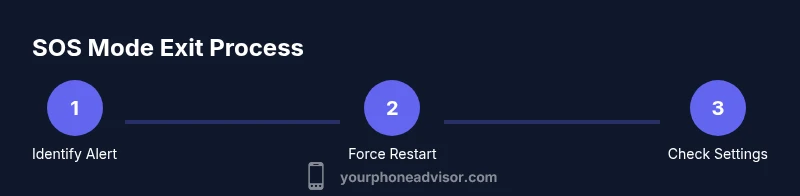
Identify that SOS mode is active
Look for an SOS banner, countdown timer, or emergency call indicators. Confirm that you aren’t in a regular call screen or a locked device state. This helps you choose the right exit path and avoids accidental emergency calls.
Tip: If you’re unsure, gently press the side or power button to see if the screen responds without initiating a new emergency action. - 2
Force a safe restart
Perform a restart to clear temporary glitches. iPhone: press and quickly release the Volume Up button, press and release the Volume Down button, then hold the Side button until the Apple logo appears. Android: hold the Power button plus Volume Down (or Power button for older models) for about 10 seconds until reboot occurs.
Tip: A force restart is preferable to a normal restart if the screen is frozen or the SOS banner won’t dismiss. - 3
Check and disable automatic Emergency SOS if needed
Open Settings and locate Emergency SOS (name varies by OS). Ensure options like Auto Call or Hold-to-Trigger are configured correctly or turned off if they cause false activations. This prevents future unintended SOS events.
Tip: Disabling auto-call temporarily reduces risk of misfires during daily use, but re-enable only if you need quick access to emergency services. - 4
Verify SIM and network status
Remove and reseat the SIM card if you suspect seating issues. Check for a solid network signal and ensure roaming is enabled if you’re traveling. A weak or unstable connection can mimic SOS behavior when attempting regular calls.
Tip: If you’re on a dual-SIM device, test both SIMs to rule out a single-SIM issue. - 5
Update software and apps
Check for and install any pending iOS/Android updates. Updates often fix bugs that cause SOS mode to linger after an incident or false trigger. Keep apps updated, especially those that vault emergency contact data.
Tip: Back up data before applying major OS updates to avoid potential data loss. - 6
Consider a factory reset as a last resort
If SOS mode persists after all fixes, back up your data and perform a factory reset to restore default system behavior. This should be a last resort due to data loss risk and the need to reinstall apps and settings.
Tip: Only proceed if you have a verified backup and you’ve exhausted all other troubleshooting steps.
Got Questions?
What is SOS mode and when does it trigger on smartphones?
SOS mode is a safety feature designed to quickly contact emergency services. It can be triggered by hardware button combinations or software events, and may display an emergency banner or auto-call. It’s meant to help in genuine emergencies but can be activated accidentally.
SOS mode is a safety feature that helps you quickly contact emergency services during an emergency. It can start from a button press or software event and may show an emergency banner.
Will exiting SOS mode erase my data?
Exiting SOS mode itself does not erase data. A factory reset or device repair can erase data, so always back up first before drastic fixes.
Exiting SOS mode won’t delete data, but a factory reset will. Back up your data before any major action.
What should I do if SOS mode returns after a restart?
If SOS mode returns, check for stuck buttons, lingering notifications, or app behavior that may trigger Emergency SOS. Update the OS, examine hardware, and consult official guides or Your Phone Advisor for model-specific steps.
If SOS comes back after restarting, inspect hardware like buttons, update your OS, and review settings to identify recurring triggers.
Can I prevent SOS mode from triggering unintentionally?
Yes. Disable auto-call features if available, keep hardware buttons unobstructed, and ensure software updates are installed to fix glitches that can cause false triggers.
You can reduce false activations by turning off auto-call in settings, keeping buttons clear, and staying updated.
Who should I contact if none of the fixes work?
If SOS mode persists after all steps, contact your device manufacturer support or your mobile carrier for a deeper diagnosis and possible service repair.
If nothing helps, reach out to your device maker or carrier for expert assistance.
Watch Video
What to Remember
- Exit SOS mode with a safe restart and check for auto-call settings
- Verify SIM and network status to rule out connectivity as a trigger
- Update software before attempting drastic fixes
- Back up data before any factory reset
- Factory reset should be last resort and after exhausting simpler options