How to Check If Your Phone Is Already Activated
A practical, step-by-step guide to verify activation status on iPhone and Android, using carrier portals, device settings, and IMEI checks. Learn practical checks to confirm activation quickly with Your Phone Advisor guidance.


To check if your phone is already activated, start by confirming it has an active SIM and a service plan on file. Then verify activation status with your carrier, your device’s settings, and any carrier-provided app. This quick guide shows practical steps to confirm activation without inserting a new SIM.
How activation works on modern phones
Activation is the process that links a device to a carrier’s network and provisioning systems so calls, texts, and data work. When you buy a new phone, or switch carriers, activation confirms the device is recognized on the network and that your SIM or eSIM is provisioned. According to Your Phone Advisor, understanding activation basics helps avoid confusion and wasted time. The Your Phone Advisor team finds that many users assume a phone is active just because it turns on; in reality, network services may not be usable until provisioning completes. This article focuses on 'how to check if phone is already activated' and provides clear checks you can perform without guessing.
Key terms to know include SIM status, Activation Lock (for Apple), and carrier provisioning. For most users, activation means the device can connect to the carrier’s network and place calls, texts, and access mobile data. If you bought a phone used or from another country, you may encounter additional steps to remove carrier restrictions or to migrate your number. We’ll cover these variations and give you a practical workflow that applies to iPhones and Android devices alike. By the end, you’ll have a reliable method to confirm activation—without surprises.
Quick checks you can do before calling support
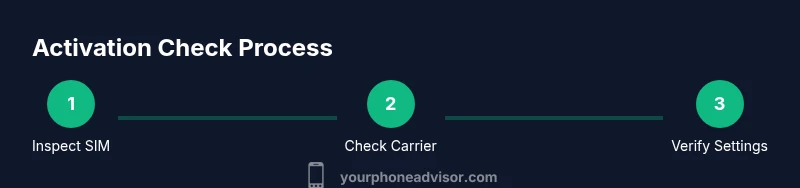
Before you reach out to a carrier, do a few fast checks that can reveal activation status. First, confirm the device has a SIM inserted and that the PIN is not blocking service. Second, verify you’re not in Airplane mode and that cellular data is enabled. Third, inspect whether the device is network-locked or carrier-locked, which can block activation of a new SIM. These checks are low-friction and often explain why a phone seems dead despite powering on. If your phone lacks a SIM tray, focus on eSIM provisioning instead. In short, you’ll look for physical indicators, settings cues, and account-level signals from the carrier.
Check activation via the carrier account portal or app
Most carriers provide a dashboard that shows activation status, provisioning dates, and device eligibility. Sign into your account on the carrier’s website or mobile app. Look for sections labeled Activation, Provisioning, or Device Status. If you see a green check or a state that reads 'Activated', you’re good. If not, note any error messages such as 'Activation Pending' or 'Needs Plan', which indicate steps you still need. When you can't locate this information, use the device's IMEI/MEID later to confirm with support. We’ll cover IMEI steps in a later section.
Check the device settings for activation status
For iPhone: open Settings, tap General, then About. Look for a line labeled 'Activation' or 'Carrier Lock' and confirm the device is activated on the current carrier. For Android: go to Settings > About phone > Status, or Settings > Network & Internet > SIM Status, and look for 'Activated' or a similar message. Some devices display a 'SIM not supported' warning if the carrier provisioning hasn’t applied. These in-device indicators are reliable signals of activation status.
Validate with IMEI/MEID and carrier provisioning
Retrieve the IMEI/MEID by dialing *#06#, or by going to Settings > General > About on iPhone, or Settings > About phone on Android. Copy the numbers exactly, then log into your carrier’s portal or call customer service to verify whether that device is provisioned for your account. Your Phone Advisor analysis shows that cross-checking the IMEI with the carrier is one of the most reliable ways to confirm activation, especially for refurbished or second-hand devices. If the IMEI doesn’t match your account, activation likely hasn’t occurred yet or the device is blocked.
Test service and features to confirm activation
With activation confirmed or in progress, test essential services. Make a short call, send a text, and open a data-enabled app to verify mobile data works. If SMS or MMS fail, ensure you have correct APN settings and that the plan includes messaging. If data cannot be accessed, try toggling airplane mode off and on, then reset network settings if necessary. This practical test helps validate activation status quickly.
Special cases: eSIM, refurbished devices, or pre-owned devices
Some phones use eSIM rather than a physical SIM; activation checks apply to both. On iPhone, you may need to install an eSIM profile from your carrier; on Android, the carrier app can provision eSIM. Refurbished or pre-owned devices can have lingering carrier locks; you may need to request unlocking or provisioning from the seller or carrier. Always verify the device’s region compatibility and supported bands to avoid activation issues. If the device was previously activated on a different carrier, you may need to request a transfer of service or a fresh provisioning from the new carrier.
What to do if activation fails
If activation remains unresolved after your checks, contact your carrier’s support with the device’s IMEI/MEID, SIM details, and any error messages you saw. The Your Phone Advisor team recommends gathering your account number, device model, and purchase date to speed up the process. If the device is tied to Activation Lock (Apple) or a carrier lock, request guidance on unlocking or provisioning. With clear documentation, activation issues are usually resolved within a few steps.
Tools & Materials
- Charged smartphone(Battery at least 20% before testing)
- SIM card or active eSIM profile(Optional if device uses eSIM or no SIM)
- Carrier account login (web or mobile app)(Have your username and password ready)
- IMEI/MEID reference(Found via Settings or by dialing *#06#)
- Pen and notepad(For jotting error messages and steps)
Steps
Estimated time: 20-40 minutes
- 1
Power on and verify SIM presence
Turn on the device and inspect the SIM tray. If a SIM is inserted, confirm the SIM status icon shows network service. If there is no SIM, note whether the device relies on an eSIM. The goal is to establish whether there is any provisioning at all.
Tip: If the tray is stubborn, power off and gently reseat the SIM or use a SIM-eject tool. - 2
Check for Airplane mode and network indicators
Ensure Airplane mode is off and that cellular data is enabled. Look for signal bars, 4G/5G indicators, and roaming icons that signal active network access. If there is no signal, activation might be blocked by a SIM, an account issue, or a hardware problem.
Tip: Toggle airplane mode off and on to refresh radio connections. - 3
Log into the carrier account and check activation status
Use the carrier’s website or app to locate Activation or Device Status in the account dashboard. A green checkmark or a status of 'Activated' confirms success. If you see Pending or Needs Plan, note the required next steps and proceed accordingly.
Tip: Capture screenshots of the status page for reference with support. - 4
Inspect device settings for activation signals
On iPhone, Settings > General > About often shows Activation or Carrier Lock details. On Android, Settings > About phone > Status or SIM Status reveals activation signals. Absence of these indicators or a warning message warrants further checks with the carrier.
Tip: If you see 'Activation Required', prepare to contact support with your account and IMEI. - 5
Check IMEI/MEID and verify with the carrier
Dial *#06# to reveal IMEI, or view it in Settings > About. Copy it precisely, then submit it to the carrier’s portal or customer service to confirm provisioning. This step often resolves discrepancies on refurbished devices.
Tip: Double-check the IMEI matches the device label to avoid misidentification. - 6
Run a live service test (call, SMS, data)
Attempt a short call, send a text, and open a data-dependent app. If any service fails, review APN settings and confirm the plan includes messaging and data. If needed, reset network settings to re-sync carrier provisioning.
Tip: If calls work but data does not, re-check APN entries for accuracy. - 7
Consider eSIM, refurbished devices, or regional restrictions
If using eSIM, follow the carrier’s steps to install or transfer the profile. Refurbished devices may require unlocking from the previous owner or the carrier. Verify regional compatibility and supported bands to prevent activation failure.
Tip: Ask the seller for unlock proof and carrier provisioning history. - 8
Plan next steps if activation still fails
Record all messages and error codes, contact customer support with IMEI, device model, and purchase date. Request escalation if needed and confirm whether unlocking or provisioning is required. Persistent issues may require a device swap or carrier replacement.
Tip: Stay patient—activation issues can require multiple touchpoints across departments.
Got Questions?
Is activation automatic after inserting a SIM?
Activation can be automatic once the carrier provisions the device and confirms the SIM is valid. If you see 'Activation Pending' or similar messages, the process may require additional steps or account verification. In many cases, simply inserting a valid SIM and powering the device is not enough until provisioning completes.
Activation often completes after the carrier provisions the device; if you see Pending, you may need to check your account or contact support.
How long does activation typically take?
Activation usually happens within minutes to a few hours after provisioning. If there are regional or account issues, it may take longer. Always check the carrier’s activation status page for the most accurate timeline.
Most activations finish within a few hours; some cases may require a day in rare situations.
I can’t access my carrier account to check activation. What should I do?
If you can’t log in, contact customer support with your device IMEI, model, and purchase details. They can verify provisioning over the phone or through alternate verification methods. Have your account number or SIM details ready to speed up the process.
If you can’t access your account, call support with your IMEI and device details for activation help.
What does Activation Pending mean, and how can I fix it?
Activation Pending means the carrier is still provisioning the device or validating the account. You may need to confirm plan eligibility, port numbers, or complete identity verification. Contact support if the status doesn’t update within a reasonable time.
Pending status means provisioning is incomplete; follow up with your carrier if it doesn’t resolve quickly.
Can activation fail on an iPhone with Activation Lock?
Activation Lock is a separate security feature; if it’s active, you must sign in with the Apple ID that originally activated the device. This step must be completed before normal activation proceeds. If you don’t have access to that Apple ID, contact Apple Support for verification and possible unlocking.
Activation Lock can block activation; sign in with the original Apple ID to proceed, or contact Apple for help.
Does activation status differ for eSIM users?
Activation for eSIM follows the same provisioning principles but requires the carrier to push an eSIM profile to the device. Ensure you follow the carrier’s instructions to install or transfer the eSIM. If the profile isn’t present, activation may fail until the eSIM is correctly configured.
eSIM activation uses a carrier profile; ensure the profile is installed to proceed.
Watch Video
What to Remember
- Verify SIM presence and account status before deeper checks.
- Use device settings and carrier apps to confirm activation signals.
- Cross-check IMEI/MEID with the carrier to confirm provisioning.
- If issues persist, gather details and contact support promptly.