Fix a Phone: Step-by-Step Troubleshooting for 2026
Learn how to fix a phone with safe, step-by-step troubleshooting. From software glitches to battery woes, our expert guide helps you diagnose, back up data, and decide when to seek professional repair in 2026.


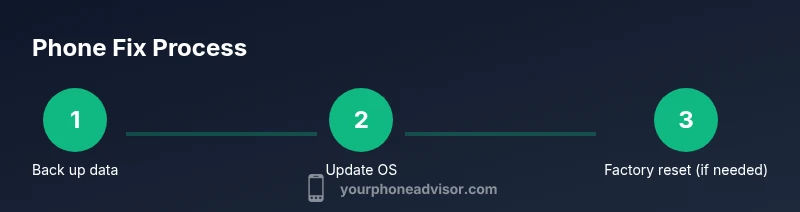
Fix a phone by following safe, actionable steps: back up data, restart and update, boot into safe mode to isolate apps, clear cache, manage storage, and reinstall problematic apps. If issues persist, perform a factory reset only after backing up, or seek professional repair. These steps cover most software glitches and can prevent data loss.
Diagnosing software vs hardware issues
When your phone malfunctions, the first goal is to tell whether it's software or hardware. Software issues are the most common culprits and typically show up as apps crashing, laggy interfaces, unexpected reboots, or settings not sticking. Hardware problems tend to produce more physical symptoms like a non-responsive screen, charging issues, camera failures, speakers that sound off, or rapid heat buildup. Start with a calm, methodical checklist: observe behavior, note when the issue began, and determine whether it affects all apps or only a subset. This helps you decide whether in-device fixes are likely to help or if you should seek professional service. According to Your Phone Advisor, most user-reported problems are software-related and solvable without hardware service. Before you do anything, ensure you have recent data backups since many fixes involve restart, resets, or app reinstallation. If hardware symptoms appear, avoid pressing, bending, or prying near the screen and battery; these can worsen damage or create safety hazards.
- Indicators of software issues: apps crashing, slow response, random reboots, or misbehaving settings.
- Indicators of hardware issues: cracked screen, bad charging, camera failures, or excessive heat.
This initial diagnosis saves time and prevents unnecessary repairs. Remember, software glitches are overwhelmingly common and often reversible with guided steps.
Safe, user-facing fixes you can try now
Most problems can be addressed with safe, in-device fixes that don’t require tools or disassembly. Start by backing up your data to the cloud or a computer, then perform a sequence of checks that isolates the cause. Reboot the device to clear temporary states, update the OS to the latest version, and clean cached data for problematic apps. If the device remains slow or unstable, identify troublesome apps by observing performance in Safe Mode (which disables third-party apps). Free up storage space, as low storage can throttle performance. Finally, reassess by reinstalling a problematic app or performing a network settings reset. If problems persist after these steps, seek professional help rather than attempting risky hardware fixes. The goal is to stabilize the software environment first before considering hardware service, which is more costly and time-consuming.
- Reboot and update first to clear temporary software issues.
- Safe Mode helps isolate third-party apps from system processes.
- Clear cache and manage storage to improve performance.
- Reinstall or remove suspect apps; consider a network reset if connectivity is unstable.
- If issues persist, plan a professional assessment rather than opening the device.
Backing up data and preparing for fixes
Backing up is non-negotiable before performing any significant fixes. A secure backup protects your photos, contacts, messages, and app data in case you need to reset or reinstall. Choose a backup method you trust: cloud services (iCloud for iOS, Google Drive for Android) or a local backup on a PC/Mac. Verify that the backup completed successfully by checking the latest backup timestamp and attempting a test restore on another device or a sandbox. For iOS users, ensure iCloud Backup is enabled and that you’re connected to a dependable Wi‑Fi network. For Android, enable Google One backup or use a manufacturer-specific service. Encryption should be on, and you should know your account credentials to restore later. By taking this precaution, you reduce the risk of data loss during fixes and restore settings quickly if needed.
- Choose cloud or local backup with encryption.
- Verify backup success and test restore if possible.
- Include essential data: contacts, photos, messages, app data.
- Keep credentials accessible but secure.
Improving performance: storage, memory, and apps
Performance problems often boil down to storage constraints or poorly behaving apps. Start by checking available storage: if your device is running low, delete unused files, uninstall infrequently used apps, and move media to the cloud or an SD card if supported. Close background apps and disable auto-start for non-essential apps to free up RAM. Consider using lite versions of apps or alternative apps that require less memory. Regular maintenance—clearing cache, updating apps, and rebooting on a schedule—helps sustain speed. If you notice a single app consuming disproportionate resources, uninstall it or contact the developer for an update. These steps help maintain a snappy user experience without the risk of hardware modifications.
- Free up storage by removing large files and old apps.
- Limit background processes; disable auto-start for non-essential apps.
- Use lighter app versions when possible.
- Keep software up to date to benefit from performance optimizations.
Battery and charging: common culprits and fixes
Battery issues are a frequent source of frustration. Start by checking battery health in your device’s settings (where available) and calibrate the battery by letting it drain to near zero and charging to 100% once or twice. If charging is inconsistent, inspect the charging port and cable for lint, corrosion, or wear. Use the original or certified charger and avoid cheap third-party accessories that can degrade performance or pose safety risks. If the device overheats during charging or use, stop charging and seek a professional assessment. For several devices, battery replacement is straightforward through official service or certified repair shops; avoid DIY replacements unless you have the right tools and knowledge.
- Check battery health and calibrate if needed.
- Inspect charging port and cable for damage.
- Use official chargers and high-quality accessories.
- Seek professional help for swollen or overheating batteries.
Hardware concerns and professional repair
Some issues clearly require hardware diagnostics, such as a cracked screen, swollen battery, water exposure, or a motherboard fault. If you notice visible damage, severe performance drops after drops, or unusual hardware behavior, discontinue use and seek professional repair. Before handing the device in, disable any security features and secure your data by backing up, then erase sensitive information if the technician offers a service that requires access to the internals. If your device is under warranty or a carrier plan, check coverage and authorized service centers to preserve your eligibility. Your Phone Advisor emphasizes that hardware repairs can be costly and time-consuming, so verify quotes and expected turnaround times before authorizing work.
- Don’t attempt risky disassembly; seek certified technicians.
- Back up data before service; verify warranty coverage.
- Request a written estimate and turnaround time.
- Use authorized service centers to protect warranty.
Data security and recovery after fixes
After performing fixes, some users worry about data privacy. Revisit security settings, review app permissions, and ensure all OS updates are applied to close security gaps. Run a reputable malware scan if you notice odd behavior, and remove apps with suspicious activity. Change critical passwords if you suspect a breach, especially for banking or email accounts. Finally, restore any previously backed-up data and verify that sensitive information remains encrypted in transit and at rest. By re-securing your device after fixes, you minimize risk and keep your data safe going forward. Your Phone Advisor’s guidance here is to maintain a habit of regular backups and timely updates to reduce future vulnerability.
- Revisit permissions after fixes.
- Run malware scans and keep the OS updated.
- Change passwords for critical accounts if needed.
- Maintain regular backups and security checks.
Conclusion (summary of key actions)
The process of fixing a phone centers on accurate diagnosis—software versus hardware—followed by safe, non-destructive fixes and careful data protection. Start with backups, perform targeted software tweaks, and escalate to professional hardware service only when necessary. The goal is to restore reliability while preserving data and security. The Your Phone Advisor team recommends staying proactive with maintenance: regular backups, timely OS updates, and mindful app management to keep your device running smoothly in 2026.
Tools & Materials
- Phone backup method (cloud or computer)(Choose iCloud/Google Drive or local backup; verify completion.)
- Official charger and cable(Use manufacturer part; avoid questionable third-party accessories.)
- Soft cleaning cloth(For screen and port cleaning; avoid liquids directly on ports.)
- SIM ejector tool(Useful if you need to inspect the SIM slot during hardware checks.)
- Basic repair toolkit (optional)(Only for advanced users or approved service centers; DIY hardware work carries risk.)
- PC or Mac for backups and restores(Helpful if you’re performing full local backups or restores.)
Steps
Estimated time: 60-90 minutes
- 1
Back up data
Set up an up-to-date backup of photos, contacts, messages, and app data to a trusted location. Verify the backup by checking a recent timestamp or performing a quick restore test if possible.
Tip: Backups are your safety net; never skip this step before major fixes. - 2
Restart and update
Restart the device to clear temporary glitches, then install the latest OS and app updates. Updates often include bug fixes and performance improvements that resolve many issues.
Tip: Let updates complete fully; avoid interrupting the install process. - 3
Enter Safe Mode (if available)
Boot the phone into Safe Mode to disable third-party apps and determine if a non-essential app is causing the problem.
Tip: If the issue stops in Safe Mode, a recently installed app is likely the cause. - 4
Clear caches and manage storage
Clear cached data for problematic apps and free up storage space to improve performance and stability.
Tip: Aim to keep at least 10-15% free storage to maintain smooth operation. - 5
Identify problematic apps
Uninstall or update apps that repeatedly crash or behave oddly. Reinstall single apps one at a time to verify fixes.
Tip: Document any correlations between app behavior and the issue. - 6
Reset network settings
If connectivity is the problem, reset Wi-Fi, Bluetooth, and cellular settings. Reconnect to known networks and re-enter passwords.
Tip: Only perform this if the problem is network-related; this step does not erase personal data. - 7
Factory reset as a last resort
If software fixes fail, perform a factory reset after backing up. This restores software to a fresh state but erases personal data.
Tip: Consider professional help before a factory reset if you’re unsure about data recovery. - 8
Test hardware symptoms and plan next steps
After fixes, test basic functions: call quality, touch responsiveness, camera, and charging. If issues persist, document symptoms and contact a professional.
Tip: If you notice swelling, cracking, or heat, stop using the device and seek service immediately.
Got Questions?
Can I fix a phone myself without voiding warranty?
Many fixes are software-related and safe to perform without affecting warranty. Hardware repairs can impact coverage, so check the manufacturer policy before opening the device.
Most software fixes won't void your warranty, but hardware work might. Check policy first.
What is the first thing I should do when my phone is slow?
Start with a restart, then review storage usage and update the OS. Reducing background processes and clearing cache can also help.
Restart, check storage, and update. Stop unwanted background activity to regain speed.
Will a factory reset delete all data?
Yes. A factory reset erases personal data and apps. Back up first, then restore your data afterward.
Yes—back up first, then restore after the reset.
Is Safe Mode available on all phones?
Safe Mode is common on Android devices to diagnose app issues. iPhones don’t have a classic Safe Mode; use Recovery or other reset options if needed.
Most Android phones have Safe Mode; iPhones use different recovery methods for diagnostics.
What should I do if the battery swells?
Power off immediately, do not charge, and seek professional repair or battery replacement. Swollen batteries are a serious safety risk.
Turn it off immediately and get professional help for a swollen battery.
How long do screen repairs typically take?
Repair duration varies by provider and location; expect a few hours to a few days after assessment.
It depends on the shop, but most screen repairs take a few hours to a few days.
Watch Video
What to Remember
- Back up before fixes
- Differentiate software vs hardware first
- Use Safe Mode to isolate apps
- Reset as last resort
- Seek professional help for hardware issues