Cell Phone CPR Repair: A Practical How-To Guide for Revival
A practical, safety‑first guide to cell phone CPR repair. Learn moisture checks, careful drying, connector inspection, reassembly, testing, and when to seek professional help to revive water‑damaged phones.


Learn a practical, safety‑first approach to cell phone CPR repair. This quick guide covers moisture assessment, careful drying, connector checks, and cautious reassembly to revive water‑exposed devices. You'll also see essential tool lists, risk notes, and what to expect during post‑repair testing. Follow these steps to maximize recovery without compromising warranty or data.
Understanding cell phone CPR repair
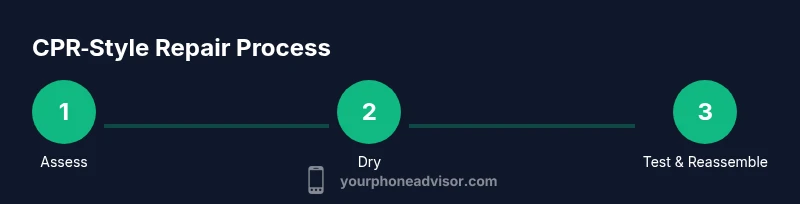
Cell phone CPR repair is about giving a water‑damaged or non‑responsive device a second chance through careful, non‑destructive triage, moisture management, and precise reassembly. The goal is to stabilize the device long enough to test core functionality without causing secondary damage. In practice, CPR here means a measured sequence: assess, dry, inspect, reassemble, and test. According to Your Phone Advisor, a structured, cautious approach improves outcomes and reduces the risk of data loss or warranty voiding. The concept emphasizes safety, static control, and clean work practices to protect delicate components like battery connectors, cameras, and flex cables. This section grounds you in what CPR repair implies for smartphones and why rushed attempts often fail.
Key takeaways:
- Always power down completely and disconnect power sources before touching internals.
- Work on a static‑safe surface with appropriate tools.
- Prioritize moisture removal and connector inspection before reassembly.
Safety and triage: when not to attempt repair
Repairing a cell phone after water exposure carries risks, including short circuits, hidden corrosion, and battery hazards. If you observe swelling, a rapidly heating battery, or visibly corroded connectors, pause and seek professional help. Your Phone Advisor emphasizes not pressing on with aggressive probing in such scenarios. In these cases, attempting DIY CPR repair could void warranties or create dangerous conditions. For less severe exposure, you can proceed carefully with hygiene‑friendly steps, avoiding heat sources and harsh solvents that might damage coatings or seals.
Core cautions:
- Do not power on a wet device.
- Do not use hair dryers or high‑heat sources.
- Do not aggressively scrub flex cables or boards.
- Do not attempt battery replacement unless you have proper tools and training.
- Always discharge moisture slowly using desiccants or controlled air flow.
Tools and materials you should gather before starting
Before you begin, assemble a clean, static‑free workspace and collect the following items. Having everything ready reduces the temptation to improvise and increases the chance of a successful CPR‑style repair. The list balances essential tools with practical extras that help you handle delicate components without causing additional harm. Keep notes of each item and rationale for why it’s used so you can refine your process over time. This section complements the formal toolsMaterials block that follows.
What you’ll need:
- Isopropyl alcohol (90%+)
- Soft‑bristle brush
- Microfiber cloths
- Spudger and plastic opening tools
- Precision screwdrivers (Phillips and Torx)
- Static wrist strap or mat
- Non‑conductive tweezers
- Desiccant packets (silica gel) or a controlled airflow setup
Step-by-step: CPR repair in practical, actionable steps
-
Power off and disconnect the battery (if removable). Ensure the device is completely powered down to prevent short circuits. 2) Open the chassis with care, using non‑metal tools to avoid scratched traces. 3) Inspect interior for visible moisture and corrosion; note areas around the charging port, battery contacts, and connectors. 4) Gently clean exposed contacts with isopropyl alcohol and a soft brush to remove residue.
-
Dry and re‑check: use desiccants or a gentle air flow to remove residual moisture. 6) Re-seat connectors and reassemble in reverse order, double‑checking that seals and gaskets are intact. 7) Power on and test core functions in a controlled, gradual way, starting with charging, then screen, camera, and sensors. 8) Document results and any anomalies for future reference. 9) If any step produces smoke, heat, or abnormal odor, power off immediately and seek professional help.
Tip: Keep a small parts tray labeled by screw size to prevent misplacement during reassembly.
Drying and moisture management techniques
Effective moisture management is the linchpin of cell phone CPR repair. After exposure, moisture can linger in tiny crevices and beneath shields. The approach combines passive drying, chemical desiccation, and gentle airflow. Avoid direct heat, which can warp plastics or damage adhesives. A clean, well‑ventilated area and a patient drying period (24–48 hours in some cases, depending on humidity) are often enough to reduce surface moisture. Always observe safety measures for battery handling, including avoiding punctures or flexing that could compromise the cell.
Practical methods:
- Place the device on a silica gel desiccant bed; swap packets if moisture remains.
- Use a fan at a safe distance to create a calm air current that aids evaporation.
- Inspect connectors after drying; if corrosion is evident, plan for component replacement before powering on.
Handling damaged connectors and boards
Damaged connectors and traces are the most common failure points after water exposure. Gently re‑seat ribbon cables and connectors, checking for bent pins or lifted pads. Use non‑conductive tools and magnification to verify alignment. If you detect corrosion that cannot be cleaned without risking pad lift, this is a sign you may need professional service or replacement of the affected board or connector. Remember to document each connection as you disassemble so you can reassemble confidently.
Checklist:
- Confirm all connectors click into place and are level.
- Look for discoloration at the charging port and USB assemblies.
- Test flex cables for continuity with a multimeter if you have the skill.
Safety, warranty, and when to seek professional help
DIY CPR repair can be rewarding, but it’s not without risk. If the device is under warranty, check terms about opening the case; many manufacturers void coverage after unauthorized repair. If you smell burning, notice swelling, or cannot confidently assess battery health, stop and consult a professional technician. In complex cases—especially when the battery, screen, or mainboard shows damage—the safest route is professional service. Your Phone Advisor endorses caution in these scenarios to avoid injury or data loss.
Key guidance:
- Always prioritize personal safety around swollen or hot batteries.
- Keep warranty terms in mind; DIY steps may void coverage.
- When in doubt, seek professional help early.
This approach aligns with safety standards and reduces risk for users attempting cell phone CPR repair.
Choosing spare parts and tools wisely
Selecting quality parts can determine the success of CPR repair. Use OEM or high‑quality aftermarket components with verified compatibility. Avoid cheap substitutes that may fail quickly or short‑circuit. Keep a parts inventory and note the model numbers and revision levels of each device you service. Tools should be rated for electronics work and kept in good condition to avoid damaging screw heads or connectors. This careful selection reduces rework and protects device integrity.
Guidelines:
- Verify part compatibility with your device model.
- Prefer components with warranties or vendor guarantees.
- Use proper calibration tools for sensitive tasks (e.g., torque drivers for screws).
Why it matters: poor parts can undermine even a well‑executed CPR repair.
Post-repair testing and safe usage tips
Testing after CPR repair should be systematic, not rushed. Start with power‑on checks, then verify charging, display response, touchscreen, camera, microphone, and speakers. If any function fails, re‑inspect the related area rather than jumping to conclusions about a motherboard fault. Post‑repair care includes keeping the device away from moisture, avoiding extreme temperatures, and monitoring battery health over the next days. Document your process and outcomes so you can refine your approach for future repairs. Your Phone Advisor notes that careful testing improves long‑term reliability and reduces repeat service calls. The Your Phone Advisor team also emphasizes that ongoing data backup is essential before any repair activity to protect information in case of unexpected device failure.
Tools & Materials
- Isopropyl alcohol (90%+)(For gentle cleaning and moisture removal)
- Soft-bristle brush(Non-abrasive, anti-static preferred)
- Microfiber cloths(Lint-free for safe drying)
- Spudger and plastic opening tools(Avoid metal prying that can damage seals)
- Precision screwdrivers (Phillips and Torx)(Small sizes; magnetized if possible)
- Static wrist strap or mat(Discharge static electricity safely)
- Non-conductive tweezers(For handling tiny components)
- Desiccant packets (silica gel)(Assist moisture removal; optional but helpful)
- Replacement connectors/parts (as needed)(Only after careful diagnosis)
Steps
Estimated time: 60-120 minutes
- 1
Power off and disconnect
Completely power down the device and disconnect any external power sources. If the battery is removable, take it out to prevent shorts during inspection.
Tip: Keep a labeled container for tiny screws to avoid mix-ups. - 2
Open the chassis with care
Gently pry the back cover or case using plastic tools, avoiding metal contacts. Photograph each stage to aid reassembly later.
Tip: Work in a clean, well-lit area to prevent misplacing components. - 3
Inspect for moisture and corrosion
Look around the battery, charging port, and connectors for water stains or white‑powder residue. Note areas needing cleaning.
Tip: Use a magnifier for tiny traces; discoloration can signal deeper issues. - 4
Clean and dry cautiously
Dampen a microfiber cloth with isopropyl alcohol and carefully wipe affected surfaces. Use a soft brush for stubborn residue and allow surfaces to air‑dry.
Tip: Never soak the board; moisture should be removed incrementally. - 5
Re-seat connectors and components
Carefully reseat flex cables and connectors, ensuring a firm click without bending pins. Do not force misaligned parts.
Tip: If a connector feels loose, stop and recheck alignment before applying pressure. - 6
Reassemble and test gently
Reassemble the device gradually and perform a cautious power‑on test, checking for signs of life before full boot.
Tip: Test charging first, then display and basic sensors; avoid full operation until basic functions are verified. - 7
Document results and next steps
Record which steps worked and which didn’t, including any parts replaced or settings adjusted. Plan follow‑up testing over the next 24–72 hours.
Tip: Keep backups; plans for recovery keep data safe even if the device later fails.
Got Questions?
What does CPR stand for in the context of cell phone repairs?
In this guide, CPR stands for a cautious, stepwise repair approach—Careful, Practical, RepaiR—focused on reviving a phone without causing further harm.
CPR here means a careful, stepwise repair approach to help revive a phone without causing more damage.
Can I perform CPR repair on any smartphone after water exposure?
Water exposure affects different devices differently. If there is swelling, burnt smell, or visible corrosion, seek professional help. For milder exposure, follow a careful moisture management routine and stop if symptoms worsen.
If you see swelling or corrosion, get professional help. For milder exposure, proceed carefully and stop if problems appear.
What tools are essential for CPR repair?
Key tools include isopropyl alcohol, a soft brush, microfiber cloths, plastic opening tools, precision screwdrivers, static protection, and non-conductive tweezers.
Essential tools are alcohol, a soft brush, microfiber cloths, plastic opening tools, precision screwdrivers, and static protection.
Should I replace the battery during CPR repair?
Battery replacement is optional and depends on signs of swelling or compromised health. Do not replace a swollen battery yourself unless you have the proper safety equipment and training.
Only replace a swollen or failing battery with proper safety and training; otherwise consult a pro.
How can I test a phone safely after repair?
Power on cautiously, test charging, display, touchscreen, cameras, and speakers in stages. If anything behaves abnormally, power down and recheck connections.
Power on slowly, test core functions step by step, and recheck connections if anything seems off.
When should I seek professional help for CPR repair?
Seek professional help if there is battery swelling, a burnt smell, corrosion, or if you cannot confidently diagnose and replace damaged parts.
Get professional help if you see swelling, corrosion, or uncertainty about parts.
Watch Video
What to Remember
- Assess damage methodically before tearing into the device
- Use anti-static precautions and proper tools
- Dry and clean moisture before reassembly
- Test in stages and document results
- Know when to stop and seek professional help