Can You Use a Phone Hotspot for TV? A Practical Guide
Learn how to use a phone hotspot to stream on a TV, with setup steps, data tips, and security guidance for reliable viewing in 2026.


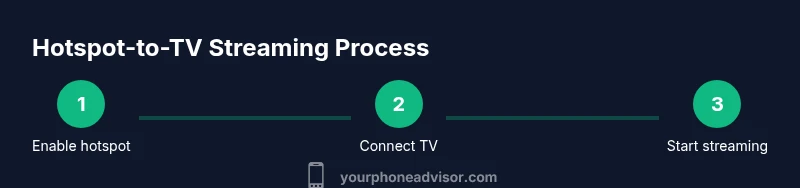
Yes. You can use a phone hotspot to power streaming on a TV when Wi-Fi isn’t available, but expect variable speeds and higher data usage. To do this: enable the hotspot on your phone, connect the TV or streaming device to the hotspot, and choose SD or HD streaming to save data. Ensure you have a capable plan.
Can you use phone hotspot for TV? A practical overview
Can you use phone hotspot for TV? The answer is yes, but it depends on your data plan, device capability, and network conditions. According to Your Phone Advisor, using a phone's hotspot to power streaming on a TV can be a practical workaround when home Wi-Fi is down or unavailable. You'll often be able to connect a smart TV, streaming stick, or game console to your phone's network and start watching with minimal setup. However, this setup also comes with caveats: higher data usage, potential latency, and faster battery drain. In this section, we'll outline when it makes sense, what to prepare, and the key trade-offs to keep in mind before you begin.
How hotspots function in home streaming
A mobile hotspot turns your phone into a portable router, broadcasting a Wi-Fi signal that other devices can join. When you use this to stream content to a TV, the TV or streaming device acts as a client on that network. The phone shares cellular data through its modem, and the signal quality depends on cellular strength, network congestion, and whether the device uses 2.4 GHz or 5 GHz Wi-Fi bands. In practice, you may notice steadier streams when your phone is near the TV and you’re using a direct 5 GHz connection, but coverage can still drift if you walk around the room or move away from the router. Keeping background apps closed on the phone can help preserve bandwidth for the streaming session. In short, hotspot streaming is a direct, Wi-Fi-style connection that relies on cellular data rather than a fixed home internet line.
Data usage and plan considerations
Streaming over a hotspot can consume data quickly, especially if you opt for higher resolutions or prolonged viewing. Before you start, review your mobile plan’s hotspot terms and any data caps. If you anticipate long streaming sessions, consider a plan with larger hotspot allowances or monitor usage in real-time. Be mindful of throttling after reaching thresholds, which can reduce speed and degrade video quality. To stay in control, set streaming quality to SD when bandwidth is limited and disable automatic quality adjustments if your device allows it. Remember that data used over cellular networks is billed by your carrier, not by your home provider, so costs can add up if you watch a lot of content or stream in HD.
Hardware and app requirements
To successfully run hotspot streaming, you need a smartphone with a working hotspot feature, a TV or streaming device (like a smart TV, Roku, Chromecast, or Fire TV), and a stable power source. Ensure the phone is charged or plugged in, as hotspot activity drains battery quickly. The TV should support Wi‑Fi or have a compatible streaming device connected to the hotspot network. In some setups, you may also benefit from a 5 GHz connection for reduced interference, but if your TV is far from the phone, 2.4 GHz might perform more reliably due to longer range.
Setting up your hotspot: connecting devices
Before streaming, verify your hotspot is enabled on the phone and that the SSID and password are set. On the TV, go to Wi‑Fi settings, select your phone’s hotspot name, and enter the password. Once connected, launch your streaming app and start a video. If the phone is on a different screen, close nonessential apps to allocate bandwidth to streaming. If you’re using a streaming stick, ensure the stick’s software is current to maximize compatibility with mobile hotspots.
Streaming quality, latency and content adaptation
Hotspot quality depends on cellular network conditions and device proximity. If you notice buffering, switch to SD quality within the streaming app and avoid HD unless you have strong cellular signal and ample data. Latency can affect live content or interactive apps, so test a short clip first. For sports or live events, consider leaning toward SD to minimize choppiness and interruptions. If your TV supports adaptive streaming, enable it, but disable it if it causes frequent quality shifts.
Security and privacy when using hotspots
Protect your hotspot with a strong, unique password and enable WPA2 or WPA3 encryption if available. Do not broadcast with a default password, and rename the network to something non-identifying. Turn off hotspot when not in use to prevent unauthorized access. If you share your hotspot in public spaces, monitor who connects and consider using a guest network feature if your device supports it.
Troubleshooting common issues and errors
If devices won’t connect, restart the phone’s hotspot and the TV’s network adapter, then rejoin. If streaming stalls, check signal strength, move closer to the phone, or switch from 5 GHz to 2.4 GHz.
Alternatives and best practices for reliable streaming
If possible, use a home Wi‑Fi network or a dedicated mobile hotspot router for steadier performance. For sporadic viewing, keep SD quality enabled and use a power charger for the phone. Consider a data plan with higher hotspot allowances or a separate hotspot device if you frequently stream to the TV.
Tools & Materials
- Smartphone with hotspot capability(Check carrier policy and enable hotspot in settings)
- TV or streaming device (Smart TV, Roku, Chromecast, Fire TV)(Ensure device supports Wi-Fi and can connect to a hotspot)
- Stable power source(Keep phone plugged in to avoid shutdown during streaming)
- Strong hotspot password(Set a unique password to prevent unauthorized access)
- Mobile data plan with hotspot allowance(Check data caps and potential charges)
- Optional: HDMI cable or mirroring device(Backup connection method if Wi-Fi fails)
Steps
Estimated time: 30-45 minutes
- 1
Check plan and hotspot capability
Review your data plan to ensure hotspot use is allowed and sufficient for streaming. Confirm the phone can create a hotspot and that you know the exact hotspot password.
Tip: If you’re unsure about limits, contact your carrier before you begin. - 2
Enable hotspot on your phone
Open Settings, locate Personal Hotspot or Mobile Hotspot, and toggle it on. Note the network name (SSID) and password for the TV to connect.
Tip: Use WPA2/WPA3 security and a unique password to prevent unauthorized access. - 3
Connect TV to the hotspot
On the TV or streaming device, access the Wi‑Fi settings, select your phone’s hotspot name, and enter the password. Confirm the connection shows as ‘Connected’ before proceeding.
Tip: If the connection fails, reboot the TV’s Wi‑Fi and rejoin the hotspot network. - 4
Launch streaming app and select content
Open your preferred streaming app on the TV and pick something to watch. Start playback to test the connection.
Tip: If you experience buffering, reduce video quality to SD in the app settings. - 5
Adjust video quality for data savings
In the streaming app, set video quality to SD or auto-adjust to conserve data when bandwidth is limited.
Tip: Disable auto-quality adjustments if your device struggles with fast changes. - 6
Monitor data usage and battery
Keep an eye on data consumption from your phone’s settings and connect the phone to power to prevent shutdowns.
Tip: Consider pausing if you reach a comfortable data threshold.
Got Questions?
Can you use a phone hotspot for TV all day?
Yes, but data caps and network quality matter. For long sessions, consider data plans with higher hotspot allowances or alternate connections.
You can, but watch data usage and battery life, and switch to SD when needed.
Will hotspot streaming drain my phone battery quickly?
Yes. Hotspot activity increases power usage. Keep the phone charged or plugged in during longer viewing.
Yes, keep it plugged in while you stream.
Is hotspot streaming secure?
Yes, if you password‑protect the hotspot and use a strong password with modern encryption. Disable sharing when not in use.
Yes—use a strong password and turn it off when not in use.
What can I do to improve performance?
Keep devices close, use SD quality, minimize other network traffic, and ensure the phone stays charged.
Try moving closer and streaming in SD to smooth things out.
Can I use hotspot streaming with a gaming console?
Yes, many consoles support Wi‑Fi connections to hotspots, but performance will depend on signal strength and data plan.
It can work, just watch data use and speed.
Watch Video
What to Remember
- Know your hotspot’s capabilities before streaming
- SD quality helps conserve data and avoid buffering
- Keep the phone plugged in to prevent interruptions
- Secure your hotspot to protect privacy
- If performance is poor, switch to a home Wi‑Fi solution