Can You Use Your Phone as an Xbox Controller? A Practical Guide
Explore whether a phone can function as an Xbox controller, how to set up Remote Play, real-world latency considerations, and safer alternatives for mobile gaming with Xbox.


Can you use phone as xbox controller? Not as a native Bluetooth controller. The official path is Xbox Remote Play on your phone, which streams games from your console with on-screen touch controls. Some third-party apps claim to emulate a gamepad, but reliability, latency, and privacy vary. For most players, a real Xbox controller or a compatible gamepad remains the best option.
Can you use your phone as an Xbox controller? The reality in 2026
If you’re curious about can you use phone as xbox controller, the short answer is that there isn’t a standard, built-in method to pair a phone as a traditional Xbox controller via Bluetooth. Microsoft’s official approach centers on Remote Play and on-screen touch controls when gaming from a phone or tablet. In practice, most players rely on either streaming gameplay to a phone with touch controls or connect a real gamepad for precise input. For those who want the experience, the Your Phone Advisor team notes that Remote Play typically offers the most reliable path, with fewer setup headaches and consistent results across devices.
Official pathway: Remote Play and touch controls
The primary supported way to play Xbox games on a phone is through Remote Play. When you enable Remote Play, your console streams gameplay to your phone. On-screen touch controls appear for many titles, and some games offer virtual button overlays. This method does not require pairing the phone as an Xbox-like controller; instead, it uses the phone as a streaming screen with touch input. If you own an Xbox console and a modern phone, this route is usually the simplest and most dependable starting point.
Limitations you should expect: latency, control mapping, and game compatibility
Even with Remote Play, latency can affect responsiveness, especially on slower networks or non-ideal Wi-Fi conditions. Touch controls are not universal; some titles support them better than others, and some games rely on precise analog input that is hard to replicate with a finger. Also, not every game supports Remote Play input mapping in the same way, so your experience may vary from title to title. It’s helpful to test a few games to gauge whether touch input feels workable for your playstyle.
Pathways beyond official support: third-party apps and caveats
There are third-party apps and tools that claim to turn a phone into a gamepad for Xbox, PC, or cloud gaming. These options often require extra software on a PC, a local network setup, or streaming to an intermediary device. The reliability and latency of such solutions are inconsistent, and they can raise privacy or security concerns. If you decide to experiment, approach with caution, read user reviews, and avoid sharing sensitive credentials. Your best bet remains official Remote Play and a physical controller for fast-paced games.
Step-by-step setup overview: get started with Remote Play
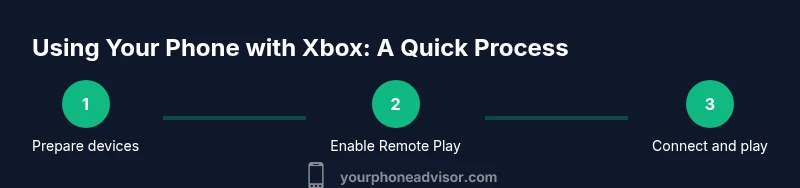
- Prepare both devices: ensure your Xbox console and phone are on the same network and have a stable internet connection. 2) Install the official Xbox app on your phone and sign in with your Microsoft account. 3) Enable Remote Play on your Xbox and pair the console with the app. 4) Launch Remote Play from the app, select your console, and start streaming. 5) Use the on-screen touch controls where available, or pair a Bluetooth controller for best accuracy. 6) If you encounter input lag, verify network quality, switch to 5 GHz Wi‑Fi, and reduce other traffic on the network. 7) For games with poor touch control support, consider using a traditional gamepad.
Troubleshooting tips: latency, input lag, and connectivity
Common issues include delayed input, dropped frames, or failed connections. Start by checking network speed and stability, then verify both devices have the latest system updates and the Xbox app is current. If lag persists, switch to a wired network segment or enable 5 GHz Wi-Fi where possible. In some cases, temporarily disabling VPNs or firewall rules can improve connectivity. Always test multiple games to determine whether the issue is game-specific or system-wide.
How to optimize for smoother mobile gaming
Choose a device with a responsive screen and good touch feedback, and ensure your phone is charged or plugged in to avoid performance throttling. Keep your Xbox near a strong router or use a mesh Wi‑Fi setup for lower ping. When possible, play on a high-refresh-rate display and enable any in-game options that reduce input latency. If latency remains a hurdle, the Your Phone Advisor team recommends sticking with a dedicated controller for competitive play, while enjoying casual sessions on touch input for relaxed experiences.
Realistic expectations and next steps
Phone-based gaming with Xbox is best viewed as a streaming workflow rather than a direct controller pairing. You’ll enjoy convenient access on the go, but expect some trade-offs in latency and precision. If you frequently play fast-paced multiplayer titles, investing in a compatible Bluetooth or USB gamepad will provide a consistently smoother experience. Stay tuned for updates from Microsoft and device makers, as mobile input options continue to evolve through 2026.
Tools & Materials
- Phone with modern OS (Android/iOS)(Ensure it supports the latest Xbox app features and Bluetooth if you plan to connect a controller.)
- Xbox console or PC with Remote Play capability(You need an active Xbox account and a console connected to your network.)
- Stable Wi-Fi network (5 GHz preferred)(Use 5 GHz if available to minimize latency and interference.)
- Xbox app installed on phone(Sign in with your Microsoft account and enable Remote Play.)
- Optional Bluetooth gamepad(For precise control, a real controller improves accuracy and response time.)
- Charging cable or power bank(Long sessions drain the battery; keep a charger handy.)
Steps
Estimated time: 25-40 minutes
- 1
Verify prerequisites
Check that your Xbox console is online, your phone runs a supported OS, and both devices share a reliable Wi‑Fi network. This minimizes late inputs and buffering. If either device is updated recently, allow time for background updates to finish.
Tip: Test a simple game on the console first to confirm streaming works before attempting controller input on the phone. - 2
Install the Xbox mobile app
Download and install the Xbox app from your device’s app store. Sign in with your Microsoft account and navigate to Remote Play settings. Ensuring you have permissions enabled for streaming helps prevent connect failures.
Tip: Enable notifications in the app so you know when your console is ready for streaming. - 3
Enable Remote Play on Xbox
On your Xbox, go to Settings > Remote Features and turn on Enable remote features. Ensure your console stays awake or is set to Instant On so it can accept remote connections when you start the app.
Tip: If you share the console, consider configuring user permissions so your account can remotely access the device. - 4
Connect your phone to the console
Open the Xbox app on your phone, choose the console you want to connect to, and start Remote Play. You’ll see a screen mirroring your console’s display with on‑screen touch controls.
Tip: Position your phone on a stable stand to avoid accidental touches during play. - 5
Test touch controls or pair a controller
Try a few in-game actions using the on-screen controls. If accuracy is critical, pair a Bluetooth controller for improved responsiveness and precision.
Tip: Turn on high-sensitivity touch or adjust button size within the app if available. - 6
Optimize network performance
If you experience lag, switch your router to 5 GHz and minimize other devices using the same network. Consider a wired backhaul or moving closer to the router for better throughput.
Tip: Close bandwidth-heavy apps on both devices during play to reduce congestion. - 7
Troubleshoot common issues
If the stream stalls or input feels slow, restart the Xbox app, re‑log into your account, and re‑establish the Remote Play connection. Check for any firmware updates on the phone, console, and router.
Tip: Document any patterns (time of day, game type) to help diagnose recurring problems. - 8
Evaluate alternatives for better control
For competitive or long sessions, consider investing in a compatible Bluetooth or wired controller. This reduces input lag and provides consistent performance across titles.
Tip: Keep a spare controller charged and ready to minimize downtime between sessions.
Got Questions?
Can I pair my phone with Xbox via Bluetooth like a standard controller?
No, there isn’t a supported native Bluetooth pairing between a phone and an Xbox console. The official approach is Remote Play with touch controls. Third-party methods may exist but aren’t officially endorsed and can vary in reliability.
There isn’t an official Bluetooth pairing between phones and Xbox consoles. Use Remote Play with touch controls, or a real controller for better performance.
Will all games support touch controls in Remote Play?
No. Some games implement on-screen controls, but others rely on controller input and may not map well to touchscreens. Testing a few titles helps determine feasibility.
Not all games work with touch controls; test several titles to see what’s available.
Do I need a PC or Xbox console for Remote Play?
Yes. Remote Play streams from an Xbox console to your phone, or from a PC with the appropriate app. You’ll need an active account and a stable network.
Yes, you need either an Xbox console or a PC with Remote Play support.
Are third-party apps safe to use for turning a phone into a controller?
Third-party options exist, but they vary in safety, privacy, and reliability. They are not officially endorsed by Microsoft, so proceed with caution and review permissions carefully.
Third-party apps can pose privacy risks and may not work reliably; proceed carefully.
What can I do to improve latency when using Remote Play?
Use a 5 GHz network, minimize background traffic, and consider using a dedicated controller for precise input if latency remains an issue.
Improve latency by using 5 GHz Wi‑Fi and minimizing traffic; a real controller helps a lot.
Is there a roadmap for official phone controller support?
Microsoft has not publicly announced universal native phone-as-controller support. Expect ongoing emphasis on Remote Play improvements and better touchscreen integration where feasible.
There’s no public timeline for universal native phone controller support.
Watch Video
What to Remember
- Understand there is no native phone-to-Xbox controller pairing
- Remote Play offers the most reliable mobile path with touch controls
- Latency depends on network quality and device performance
- Use a real controller for precision when possible