Moon Photography with Smartphones: A Practical Guide
Find out which phone can photograph the Moon and how to optimize exposure, stabilization, and focus with practical tips from Your Phone Advisor.


Most modern smartphones can photograph the Moon with proper stabilization and exposure control. A stable tripod, a phone with night mode or astro/moon modes, and the ability to manual exposure and focus will yield clear lunar images. Start with a modest zoom, steady the shot, and adjust exposure to avoid blown-out highlights for sharper detail.
What makes Moon photography different on a phone
The Moon is bright yet appears small in the sky, which creates a tension between exposure and sharpness on smartphone sensors. When you ask which phone can take pictures of the Moon, the answer is: most recent smartphones can do it well if you leverage stabilization, proper exposure, and thoughtful framing. Your goal is to capture a balance where lunar features like craters and maria are visible without washing out the surface with glare. In practice, this means choosing the right settings and supporting gear, such as a tripod and a lightweight remote trigger, to keep motion blur at bay. For readers asking what phone can take pictures of the Moon, the short answer is that you don’t need a dedicated camera—modern smartphones suffice with the right technique and approach.
Key phone features that help with Moon shots
Moon photography benefits from several camera features commonly found in newer devices: optical or high-quality digital zoom, reliable autofocus in low light, and smart modes that stabilize exposure. Night modes can extend exposure, but they risk blur if the phone shakes. Astro or Moon modes (when available) tailor capture algorithms for celestial targets. A strong processor enables faster RAW or DNG capture, giving more flexibility in post. If your device lacks manual controls, third-party apps can unlock exposure, focus, and shutter speed control, which makes the difference between a flat glow and textured lunar detail.
Understanding exposure, ISO, and shutter speed on a phone
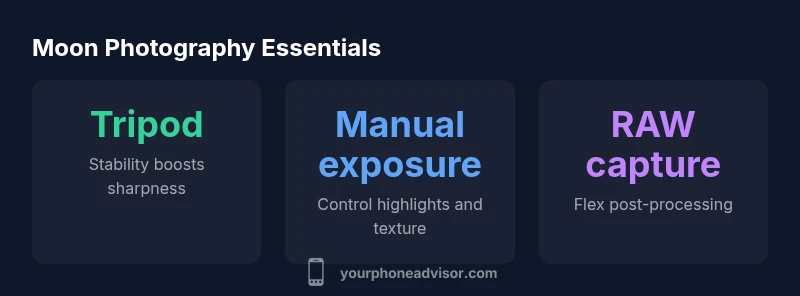
Exposure is the most critical lever when photographing the Moon. A typical Moon shot benefits from a faster shutter (around 1/60 to 1/200 second) to reduce motion blur, a low to moderate ISO to limit noise, and careful metering to avoid blown highlights. In auto modes, phones may push ISO too high or overexpose; switching to manual or pro modes helps, especially if you can lock focus at infinity. Stabilization is essential, because even tiny tremors become magnified on the Moon’s small, bright disk. RAW capture provides the most latitude in post-processing for bringing out texture while keeping sky dark.
Focusing strategies and keeping the Moon sharp
The Moon isn’t a foreground subject; its sharpness depends on precise focus at infinity and stabilization. If your phone has live focus peaking or focus magnification, use it to lock onto the lunar surface’s edge craters. Manually adjust focus until craters appear crisp, then reframe. In many cases, enabling focus lock after finding sharp focus prevents hunting as you adjust exposure. When possible, disable digital stabilization in favor of tripod stability to avoid micro-jitters that reduce sharpness.
From auto to manual: controlling exposure and white balance
Switching to a manual or pro mode gives you explicit control over exposure, ISO, and white balance. Set white balance to a cool neutral (around 4000–5200K) to preserve lunar texture and avoid color casts from ambient light. Try exposing slightly under the moon’s brightness (negative EV) to keep details in crater walls. If your device supports RAW capture, you’ll have the most latitude to retrieve shadow detail in post-processing. Practice with a few test shots to learn how your particular phone responds to lunar lighting.
Stabilization: the role of a tripod and remote triggering
A sturdy tripod dramatically improves image quality by eliminating hand-shake during longer exposures. Even a small tabletop tripod can stabilize your phone enough to capture shadows in lunar craters. If you don’t have a tripod, rest your phone on a solid surface and use a timer or remote shutter. A tripod also enables you to frame the Moon against a darker sky, which helps emphasize texture and contrast.
Framing and composition: scale, context, and texture
Moon shots benefit from context. Include part of the horizon or foreground silhouettes to give a sense of scale, but avoid clutter that distracts from the Moon’s texture. Experiment with golden or blue hour light when the Moon appears near the horizon to add color depth. Use a moderate crop to emphasize craters, and avoid wide-angle distortions that can soften lunar features.
A practical, step-by-step setup for Moon photos
- Mount your phone on a stable tripod. 2) Enable RAW capture and set to manual mode if available. 3) Start with a shutter speed of 1/100 sec, ISO 100–200, and adjust as needed. 4) Focus at infinity or use manual focus to lock onto lunar craters. 5) Turn on lunar or astro mode if present, then test a few frames. 6) Review, adjust exposure, and shoot in RAW for post-processing.
Common mistakes and how to avoid them
Mistakes include hands shaking, overexposed moons, and neglecting focus. Avoid auto exposure that clips lunar details; use exposure compensation or manual mode. Don’t rely on digital zoom alone; instead, use the phone’s optical zoom when available and keep the lens clean. Finally, never shoot in the heat of the moment without stabilization; you’ll regret the blur in post-processing.
Apps and accessories that help
Third-party apps can unlock RAW capture, manual focus, and shutter speed control on devices that don’t offer these in stock apps. A simple exposure-lock app or a celestial photography app can simplify moon-focused workflows. Accessories like a universal phone clamp for tripods, a remote shutter, and a clip-on telephoto lens can provide modest improvements without buying a high-end telescope.
Wrap-up thoughts for beginners and seasoned shooters
The Moon is a forgiving subject for beginners when you’re equipped with a tripod, basic manual controls, and patience. Even if your phone lacks advanced astronomy modes, practical steps—stable framing, controlled exposure, and mindful focus—will yield meaningful lunar detail. As you gain experience, you’ll learn to anticipate phases, lighting, and composition nuances that elevate your Moon photos from snapshots to memorable lunar portraits.
Phone moon shooting capabilities by feature
| Phone capability | Moon shot impact | Notes |
|---|---|---|
| Telephoto lens | Improved moon framing | Use 2x–5x optical zoom if available; avoid heavy digital zoom |
| Night mode | Longer exposure can reveal texture | Pair with tripod; avoid excessive ISO |
| Manual controls | Best for moon detail | Use exposure and focus controls; shoot RAW when possible |
| Astro/moon mode | Optimized lunar textures | Only on select devices; test brightness first |
Got Questions?
Can any phone take pictures of the Moon?
Yes, most modern smartphones can capture the Moon with stabilization and exposure control. Results improve with a tripod and manual controls or compatible apps.
Most phones can photograph the Moon, especially with a tripod and manual controls.
Do I really need a telescope or telephoto lens?
A telescope isn’t required. A phone with good optical zoom or a solid digital zoom, plus stabilization, will yield better Moon details. A real telescope helps but isn’t mandatory for satisfying results.
You don’t need a telescope, but a good zoom and stability help a lot.
What is the best time to photograph the Moon?
Moon texture and contrast vary with lunar phase. A near-full Moon is bright and easier to shoot, but a crescent can reveal crevices and shading. Choose phase based on texture you want to emphasize.
Phase matters—full for brightness, crescent for texture.
Which apps help with Moon photography?
Look for apps that offer manual controls, RAW capture, and focus peaking. They empower you to set shutter, ISO, and focus precisely for crisper lunar images.
Apps with manual controls make Moon shots easier and sharper.
How can I minimize blur when shooting the Moon with a phone?
Use a tripod, a remote shutter or timer, and a shutter speed fast enough to avoid motion blur. Turn off excessive stabilization if your tripod is solid. Keep ISO low to reduce noise.
Tripod and a timer help you keep the Moon sharp.
“Smartphone moon photography is less about megapixels and more about technique. With proper stabilization and deliberate exposure, any recent phone can produce sharp lunar images.”
What to Remember
- Use a stable tripod for sharp Moon shots
- Prioritize manual exposure and focus over auto modes
- Use optical zoom first; limit digital zoom
- Shoot in RAW if possible to maximize post-processing
- Frame Moon with a simple foreground for scale