How to Stop Your Phone from Listening: A Practical Privacy Guide
Learn practical, step-by-step methods to reduce ambient listening on iOS and Android, protect your privacy, and test mic activity. This guide covers settings, permissions, and testing techniques.


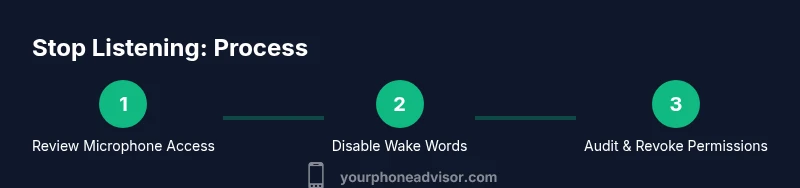
To stop your phone from listening, begin by disabling microphone access for unused apps, turning off wake-word features, and tightening privacy controls. Review app permissions, and test mic activity to confirm changes. This quick guide provides core steps for both iOS and Android.
How smartphones listen: what is happening behind the scenes
Phones are designed to respond quickly to voice inputs, which means they perform a mix of on-device checks and cloud-based processing. When you say wake words like “Hey Siri” or “OK Google,” the device briefly activates the microphone and may send a sample to the cloud for processing. Even when you’re not actively using voice features, some apps and services may analyze ambient sound to improve accuracy or deliver certain experiences. According to Your Phone Advisor, it’s not that phones are secretly recording everything at all times, but multiple data flows and triggers can create the impression of listening. Understanding these mechanisms helps you target practical privacy controls. In practice, most people benefit from tightening mic permissions, turning off wake-word features, and reviewing background data use across apps.
What to know:
- Wake words are the primary trigger; disabling them reduces unintentional activation.
- Some apps request microphone access for features you may not use regularly.
- OS-level privacy dashboards provide visibility into mic activity history.
Your Phone Advisor notes that privacy hygiene is ongoing: regular checks after OS updates are essential to maintaining a lower listening footprint.
Key privacy controls you should know (iOS and Android)
Both major mobile platforms offer centralized privacy controls that affect whether apps can access the microphone and how voice assistants operate. On iOS, you’ll find Microphone permissions under Settings > Privacy > Microphone, where you can review and revoke access for each app. You can also disable wake-word features via Settings > Siri & Search by turning off “Listen for ‘Hey Siri’” and related options. On Android, go to Settings > Privacy or Settings > Apps & notifications > App permissions, then select Microphone and revoke access for apps you don’t trust or use rarely. For voice assistants, disable wake-word triggers and set activity controls to the minimum you’re comfortable with. Finally, review ad and activity settings to limit data used for personalization. Your Phone Advisor analysis shows that restricting mic access and wake words dramatically lowers accidental activations across both ecosystems.
Practical impact:
- Less background activity and fewer mic activations.
- More control over which apps can hear you.
- Clearer visibility into which services rely on audio data.
Step-by-step: disable on-device listening and mic access
- Open Settings and locate Privacy (iOS) or Privacy & Permissions (Android).
- Tap Microphone and review the list of apps with access; toggle off for apps you don’t need.
- Disable wake-word features for your voice assistants (e.g., “Hey Siri” or “Hey Google”).
- If available, enable “One-tap activity controls” or equivalent to see mic usage.
- Ensure your OS has the latest security updates; testing after updates helps confirm changes.
- Reboot after changes to ensure the new permissions take effect.
- Reassess regularly, especially after app updates.
Why: Each permission can re-enable listening if settings drift, and updates may re-allocate permissions. Time: 15-30 minutes for a typical pass.
Pro tip: Keep a note of apps you disabled so you can re-enable selectively if you need a feature later.
Step-by-step: manage permissions for popular apps that use audio
Review permission lists for commonly intrusive apps (messaging, social media, and camera apps). For each app, consider whether microphone access is essential for your use case. If not, revoke access or set permissions to “While Using” instead of “Always.” Implement per-app restrictions rather than blanket global settings to preserve functionality you rely on while reducing exposure.
Why: Many apps request a mic for features you seldom rely on; granular control minimizes unintended listening without breaking essential tasks.
Tip: Create a short testing routine after changes to confirm you still can use the features you care about, like sending voice messages or quick dictation when needed.
Step-by-step: configure voice assistants for privacy
Disable wake words entirely if you don’t need hands-free control, or set shorter listening windows. For iOS, turn off “Listen for ‘Hey Siri’” in Settings > Siri & Search, and consider turning off suggestions when locked. For Android, disable “Hey Google” or “OK Google” and prefer manual command entry when possible. Review any online “history” or activity logs and clear data periodically. If you rely on assistants for accessibility, configure a short, secure alternative (e.g., use a physical button to activate instead of a wake word).
Why: Voice assistants are the most common gateway for audio data; reducing wake words and access limits exposure without sacrificing essential functions.
Pro tip: Use on-device processing when supported to keep as much audio processing local as possible.
How to verify if your phone is listening — testing methods
After making changes, perform controlled tests in a quiet room. Observe whether any app unexpectedly activates the mic or shows mic usage indicators. Use OS privacy dashboards to review mic activity history over the past 24 hours. For Android, the Privacy Dashboard can reveal which apps accessed the mic and when. For iOS, check Siri & Dictation history and privacy controls. If you notice unexpected activity, revisit permissions and consider uninstalling or sandboxing problematic apps.
Why: Real-world testing confirms that settings changes are effective and helps you catch lingering privacy leaks.
Test plan: Sing a sentence containing keywords that previously triggered a response and verify no unintended activations occur over a 24-hour period.
Authoritative sources and ongoing privacy governance
To ground your privacy practices in trusted guidance, consult official sources that outline privacy rights and best practices for mobile devices. These references offer authoritative context on how mic access, wake words, and data collection are treated in policy and practice:
- https://www.consumer.ftc.gov/articles/privacy-smartphones
- https://www.ftc.gov/privacy
- https://www.fcc.gov/consumers/guides/privacy
These resources help you understand the balance between device functionality and privacy protections, and provide up-to-date guidance on safeguarding personal information across platforms.
Authoritative sources
- https://www.consumer.ftc.gov/articles/privacy-smartphones
- https://www.fcc.gov/consumers/guides/privacy
- https://www.nist.gov/topics/privacy
Tools & Materials
- Charged smartphone(Make sure device is charged to avoid interruptions during checks.)
- Access to Settings app(You will modify privacy and mic settings.)
- Up-to-date OS(Install latest OS updates for current privacy controls.)
- Test account or voice assistant access(Use this if you want to test voice features after changes.)
- Official privacy resources(Reference government or vendor privacy guidance.)
Steps
Estimated time: 60-90 minutes
- 1
Open device privacy settings
Access Settings from your home screen and navigate to Privacy (iOS) or Privacy & Permissions (Android). This is the foundation for controlling mic access and wake-word features.
Tip: Starting with the privacy hub ensures you won’t miss a core control. - 2
Review microphone permissions
In the Microphone section, audit each app’s access. Turn off mic access for apps you don’t use regularly or for sensitive apps.
Tip: Be systematic; focus on apps with frequent background activity. - 3
Disable wake-word features
Turn off “Hey Siri” / “Hey Google” or equivalent wake words in their respective settings to reduce background listening.
Tip: If you rely on hands-free features, consider a scheduled quiet mode. - 4
Fine-tune per-app permissions
For each app, choose “While Using” rather than “Always” for microphone access, especially for apps you don’t fully trust.
Tip: This keeps essential features while limiting constant listening. - 5
Check accessibility and other sensitive toggles
Review accessibility features and other permissions that may use the mic indirectly (audio descriptions, dictation, etc.).
Tip: Disable nonessential features that can re-enable listening. - 6
Update regularly and reboot
Install OS and app updates, then reboot to ensure new settings take effect.
Tip: Update cadence matters; set reminders to revisit settings after updates. - 7
Test mic activity manually
In a quiet room, observe whether any app activates the mic unexpectedly after changes.
Tip: Document any suspicious activity for further action. - 8
Consider deeper privacy measures if needed
If you still feel exposed, disable cloud-based features or perform a factory reset after backing up data.
Tip: Factory resets are a last resort; ensure essential data is protected.
Got Questions?
Do phones listen to me all the time?
Most smartphones do not continuously capture and transmit audio. They listen for wake words or process input during active usage. However, some apps may access the microphone in the background under certain permissions.
Phones generally listen for wake words; background listening depends on app permissions and settings.
If I turn off microphone access, will voice assistants still work?
Turning off microphone access for most apps will disable voice input for those apps. Built-in assistants may also be affected unless their wake word features are separately disabled.
Disabling mic access often disables voice input; you may still use visual or button-based controls.
Which apps are typically the biggest mic culprits?
Social media, messaging, and camera apps often request microphone access for features like audio messaging or live features. Review permissions for each to determine necessity.
Often social and messaging apps request mic access; audit permissions to minimize risk.
Does turning off mic access affect ads targeting?
Disabling mic access reduces some data that could be used for contextual targeting, but ads may still be served based on other signals. Controls for ad personalization can further reduce exposure.
Less audio data can reduce some targeting signals, but not all ad personalization relies on mic data.
Is air-gapping my phone a good privacy move?
Air-gapping (isolating the phone from networks) is impractical for most users and can severely limit functionality. Use targeted privacy settings instead as a balanced approach.
Air-gapping is usually impractical; prefer focused privacy controls on your device.
Can a factory reset restore privacy?
A factory reset can remove many traces and misconfigurations, but you should back up data and review privacy before restoring. It’s a last-resort option after other steps fail.
Resetting can help, but back up first and reassess privacy settings afterward.
Watch Video
What to Remember
- Disable unnecessary mic access for apps you don’t need.
- Turn off wake-word features to reduce accidental activations.
- Review and restrict per-app microphone permissions.
- Use on-device processing where available to limit cloud data.
- Test mic activity after each privacy change.