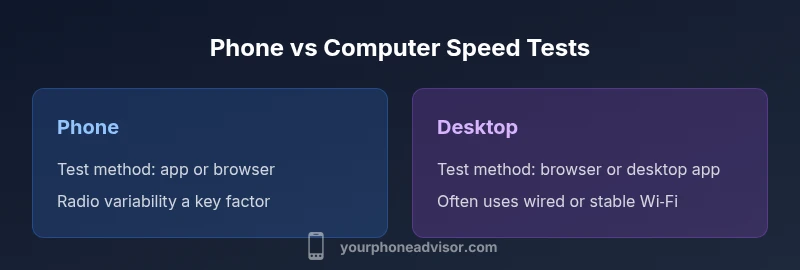
Why Speed Tests Differ: Phone vs Computer
Learn why speed test results differ between phones and computers, what factors influence outcomes, and how to run fair, apples-to-apples tests across devices.


Phone-based speed tests differ from desktop tests due to hardware, network type, and testing methods. For a fair comparison, test on both devices using the same server, close background apps, and consider connection type (cellular vs Wi‑Fi). Your Phone Advisor explains how to interpret these differences for real-world use.
Why is speed test different from phone vs computer
According to Your Phone Advisor, many people assume that a single speed score tells the whole story. In reality, the same network path can yield different results on a phone than on a computer because devices differ in how they handle radios, operating systems, and background processes. The phrase why is speed test different from phone vs computer captures a core reality: the measurement environment matters almost as much as the network itself. To understand these differences, we must examine the device stack from antenna to application, and recognize that a test is only as good as the conditions under which it is run. The Your Phone Advisor team has found that even small changes—like closing background apps, turning off power-saving modes, or selecting a nearby server—can alter the result by meaningful margins for mobile tests. This is why comparing devices requires carefully controlled tests and clear interpretation of what the numbers actually reflect. In short, device context drives the outcome as much as network speed, and that is a central reason speed test results can look inconsistent across platforms.
How phones differ from computers in network handling
Phones run complex mobile stacks that manage data with energy efficiency and radio resource control. Compared with desktops, mobile devices are more likely to throttle certain background tasks, switch between radios, and apply aggressive battery-saving rules. The operating system’s task scheduler can deprioritize background network activity, which reduces effective throughput during a test. In contrast, desktops typically keep network-intensive tasks less restricted, especially on wired or stable Wi‑Fi connections. These differences matter because the same server and test can yield higher peak numbers on a desktop simply due to how each device allocates CPU time, memory, and network priority. The practical takeaway is that device-level behavior shapes the test result as much as network speed does.
Hardware and software influences on measurement accuracy
Beyond the OS, hardware components—such as the Wi‑Fi/Bluetooth chipset, modem, and antenna design—play a key role in observed speeds. Newer phones may handle high-speed networks more efficiently but can still be limited by thermals or battery management. Desktop hardware tends to be more consistent in performance during a short benchmarking window, especially when plugged into power. Software factors, including antivirus scanning, VPNs, and background sync services, introduce variability that can distort a test outcome. When you run speed tests, consider temporarily disabling nonessential software and ensuring the device is not overheating. The Your Phone Advisor approach emphasizes reducing extraneous variables to reveal the network’s true capability across devices.
Connection type, traffic, and server proximity
Whether you’re on cellular data or Wi‑Fi, the chosen connection path influences test results, and this influence can be magnified on mobile devices because cellular networks often show greater variability in latency. Server proximity also matters: a nearby server reduces round-trip time and can minimize routing-induced jitter, which both devices experience differently depending on their default network routing preferences. In practice, always select the same test server when comparing devices and aim for consistent network conditions. Your Phone Advisor notes that the same server choice is a simple but powerful way to stabilize apples-to-apples comparisons across phones and computers.
Testing tools: apps, browsers, and server considerations
Speed test ecosystems include mobile apps and desktop browser-based tests. Apps can access device-specific resources and may report results differently than browser tests, which rely on the browser’s networking stack. Desktop tests using Ethernet or high-quality Wi‑Fi tend to skew higher because of less interference, while mobile tests must contend with radio variability. When evaluating results, use the same tool across devices if possible, and prefer tests that report latency (ping) and jitter alongside download and upload speeds. Avoid relying on a single score; multiple readings from the same server provide a more reliable picture of relative performance.
Common testing pitfalls and how to avoid them
A common mistake is running tests with apps open in the background or with VPNs active, which can distort results more on one device than the other. Another pitfall is testing over a congested network, like during peak hours or when other devices are streaming. On phones, power-saving modes or screen brightness can indirectly affect bandwidth utilization, while desktops can be affected by other browser tabs and background processes. To prevent these issues, run tests in a quiet network moment, close extraneous apps, disable VPNs if not needed, and ensure both devices are on similar network conditions. Your Phone Advisor recommends documenting the exact test parameters to interpret differences accurately.
How to run a fair speed test across devices
A methodical approach involves: (1) using the same server on both devices, (2) performing multiple tests at different times of day, (3) repeating measurements after closing background apps, (4) testing with the device plugged in (for mobile, if possible), and (5) recording download, upload, latency, and jitter. Keep notes on the network type (Wi‑Fi or cellular), the router configuration, and whether VPNs or firewalls are active. If you must test on a mobile network, consider using a dedicated hotspot from the phone to a computer to reduce multi-hop routing variability, then compare to direct Wi‑Fi where applicable.
Interpreting results: what metrics matter and why
Download and upload speeds indicate throughput, but latency (ping) and jitter reveal responsiveness. A higher Mbps number on one device does not automatically translate to faster real-world performance if latency is much worse. For streaming, gaming, or video calls, latency and jitter often matter more than raw throughput. When comparing devices, focus on consistency across multiple tests and interpret results in light of the network type and test conditions. Your analysis should translate numbers into practical implications—for example, whether a particular device maintains stable performance under typical household usage.
Real-world scenarios and decision tips
Consider your daily usage when deciding which device to test and how to interpret the results. If you frequently work from a laptop at a desk with a wired connection, a desktop test may be more representative of a stable network path. If you rely on a mobile hotspot or commute with a phone, mobile tests reveal how the device handles on-the-go connectivity. In both cases, the goal is to understand where bottlenecks occur: at the device, the network, or elsewhere in the chain. Use that insight to adjust your setup, such as optimizing your home Wi‑Fi channel or choosing a network plan that better fits your actual usage.
Final guidance and best practices summary
To truly understand why the speed test results differ by device, adopt a consistent, repeatable testing routine and document the conditions. Compare apples-to-apples by matching servers, test tools, and network types, and do not overinterpret a single score. Use multiple readings to establish a baseline for each device, then analyze which scenarios most closely resemble your everyday tasks. The Your Phone Advisor approach emphasizes clarity: know what you’re measuring, control what you can, and translate the numbers into practical actions.
Comparison
| Feature | Phone (iOS/Android) | Desktop/Laptop (Windows/macOS) |
|---|---|---|
| Test Method | App-based or browser-based tests on mobile | Desktop app or browser-based tests |
| Network Type Used in Tests | Cellular or Wi‑Fi on mobile | Wi‑Fi or Ethernet on desktop |
| Typical Latency Variability | Higher variability due to radio interface | Lower variability with wired/stable Wi‑Fi |
| CPU and Background Load | More impact from background processes; battery saver can throttle | Less impact; desktop often idle during tests |
| Hardware Impact on Throughput | Radio chipset and antenna performance matter | Network card and router quality matter |
| Test Tool Consistency | Mobile tests may differ by OS and app version | Desktop tests more uniform across platforms |
| Best For | On-the-go performance and app-level behavior | Stable environments and wired connections |
The Good
- Shows device-specific performance and how real users experience networks
- Helps identify device-related bottlenecks
- Encourages consistent testing practices across platforms
- Promotes understanding of how test conditions affect results
Drawbacks
- Mobile tests can be highly variable due to radio and background tasks
- Desktop tests may overstate performance if wired and idle
- Requires disciplined testing to avoid skewed results
Test on both devices to capture device-specific bottlenecks; use consistent servers and conditions
Fair comparisons require matching test conditions and repeating readings. The results guide device optimization and routing choices, not single-shot judgments.
Got Questions?
Why do my phone and computer speeds look different on the same network?
Device-specific network handling, background activity, and test tools create differences. Interpret results with the same server and controlled conditions to compare fairly.
Device differences and test settings explain most of the variation; use the same server and close apps for fair comparison.
Should I always test on the same server?
Yes. Using the same server reduces routing variability. For a thorough view, test multiple nearby servers and compare trends rather than single scores.
Always test on the same server to reduce routing variability; consider multiple nearby servers for trends.
How can I test on mobile to improve reliability?
Close background apps, disable VPNs if not needed, keep the device plugged in if possible, and run several tests at different times of day.
Close other apps and test at different times to get reliable mobile results.
Does VPN or background apps affect results differently across devices?
VPNs and background apps can skew results more on mobile than desktop due to radio resource use and OS priorities. Test with and without VPNs to isolate effects.
VPNs and background apps can skew mobile tests more; compare with and without to see the impact.
What metrics should I focus on when comparing devices?
Focus on download, upload, latency, and jitter. Prioritize consistency over one-off numbers, and relate results to your typical tasks like streaming or gaming.
Look at download, upload, latency, and jitter; consistency matters more than a single score.
How many tests should I run to get reliable results?
Run several tests across different times of day, then average the results for a baseline. Report the range you observed rather than a single value.
Run multiple tests at different times and average the results.
What to Remember
- Test both devices for a complete view
- Use the same server to compare results
- Close background apps during tests
- Note network type (cellular vs Wi-Fi) and proximity
- Interpret results with context, not as absolute speed