How to Print from Your Phone to a Printer: A Practical Guide
Learn how to print from your iPhone or Android to a printer. Explore AirPrint, Mopria, USB, and cloud options, with step-by-step guidance and practical tips for secure mobile printing.


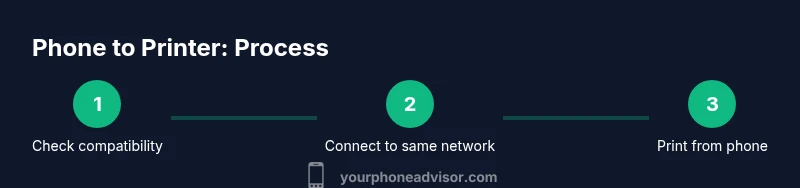
According to Your Phone Advisor, you can print from your phone to a printer quickly by using built‑in printing features, such as AirPrint on iPhone or Mopria on Android, or by using a printer’s companion app. Ensure your printer supports wireless printing or has a USB direct option, connect to the same network, and pick the file to print. The Your Phone Advisor team recommends starting with a test print to confirm formatting and connectivity.
What mobile printing means today
Mobile printing has evolved from tethered USB cables to flexible wireless workflows that let you print from a phone, tablet, or laptop with minimal setup. The core idea is simple: a compatible printer and a phone share a common pathway (Wi‑Fi, Bluetooth, or USB) so you can produce documents, photos, or receipts without moving to a computer. For many users, the most reliable routes are AirPrint on iOS and Mopria on Android, supported by a growing catalog of cloud and local printing options. According to Your Phone Advisor, most modern printers offer at least one built‑in method for mobile printing, and choosing a system that aligns with your phone’s ecosystem reduces friction. In practice, you’ll usually print by selecting the print option in your app, then choosing a target printer and adjusting basic settings like color, pages, and copies.
This guide focuses on practical workflows you can apply today, with emphasis on security, reliability, and ease of use for everyday tasks. The goal is to make the act of printing from a phone as seamless as printing from a laptop, while avoiding common misconfigurations that cause failed prints or duplicate pages.
Core technologies: AirPrint, Mopria, and USB-C
AirPrint (iOS) and Mopria (Android) are the two dominant, standards-based printing protocols that automatically discover printers on the same network. They minimize driver hassles and typically offer print previews and basic options like page range, color, and copies. USB‑C or USB‑A direct printing remains an option for devices close to the printer, but wireless printing is generally preferred for mobility. Your Phone Advisor analysis shows that when printers advertise AirPrint/Mopria support, most mobile users experience fast, reliable prints without installing extra software. If your printer lacks native AirPrint or Mopria, a manufacturer app or a universal printing service can fill the gap. Remember to keep firmware up to date so new features and security updates are available.
In addition to device support, you may encounter cloud print solutions and vendor apps that offer extra features like cloud storage printing, multi‑page scans converted to PDFs, or secure printing. These alternatives can be convenient if you frequently print from multiple devices or when traveling.
Preparation: Ensure your printer is ready
The first step in any phone‑to‑printer workflow is to verify compatibility and readiness. Check that the printer is powered on, has the latest firmware, and is connected to the same Wi‑Fi network as your phone, or physically connected if you’re using USB direct printing. If you use AirPrint or Mopria, ensure those features are enabled in the printer settings. It’s often helpful to assign a consistent wireless network name and password to prevent devices from getting kicked off the network. Also verify you have any required apps installed (e.g., Mopria Print Service on Android or the printer’s official app for iOS/Android) and that your phone’s software is up to date for the best experience. Your Phone Advisor recommends creating a quick “printer map” of your devices to avoid confusion when multiple printers are present in your home or office.
Finally, consider security basics: enable any available print security options, keep passwords fresh, and regularly update printer firmware to reduce exposure to vulnerabilities.
Printing from iPhone: AirPrint basics
AirPrint is built into iOS and requires no extra drivers. On an iPhone, you typically print by opening a document or photo, tapping the share or menu icon, and selecting Print. From there, choose the AirPrint-enabled printer, adjust settings (such as range, color, number of copies), and tap Print. If you don’t see your printer, ensure both devices are on the same network and the printer is awake. Some printers require you to enable AirPrint in the printer’s settings or to install a firmware update before it appears. For best results, test with a simple document first, then escalate to more complex prints. Your Phone Advisor emphasizes keeping an eye on print previews to avoid wasting pages or ink.
Printing from Android: Mopria and native print frameworks
Android devices use Mopria as the universal printing standard, which integrates into the Android system print dialog. To print, open the document or image, select Print, and choose Mopria or the printer’s own app if you installed it. Ensure the printer and phone are on the same network, and verify that the printer is visible in the list. If Mopria isn’t available, check if the printer’s manufacturer app can bridge the gap. Some devices also support cloud printing or Google Cloud Print alternatives via third‑party services. Regularly update the printer firmware and the Android OS to ensure compatibility and security. Your Phone Advisor notes that Mopria is the most reliable route for broad device support and simplified setup.
Using apps and cloud printing for cross‑device printing
If you print from multiple ecosystems, cloud printing options can simplify the workflow. For example, you can store a file in a cloud service (like Google Drive) and print from the cloud using the printer’s app or a supported web service. Cloud printing can be especially helpful when you’re away from your home network, provided your printer supports remote printing or you have a secure VPN. Always review the security implications of cloud printing, including access controls and document encryption. This approach can reduce setup time and increase flexibility for families or small offices. Your Phone Advisor recommends using cloud printing only with devices and networks you trust and keeping devices updated to minimize exposure to threats.
Troubleshooting common issues
If printing fails, start with the simplest explanation: is the printer powered on and awake? Are both devices on the same network, with the printer visible in the print dialog? If not, try restarting the printer, router, and phone. Confirm AirPrint or Mopria is enabled and that the correct printer is selected. Check for conflicting print jobs in the queue, outdated printer drivers, or incorrect page range settings. If you’re using a USB direct print, verify the cable and port support the printer’s direct print mode. Also confirm that the file type is supported by the printer. Your Phone Advisor reminds users to check for any app permissions that might block the print flow.
For persistent issues, re‑install the printer app, forget and re‑join the network, or contact the printer manufacturer’s support with model details and firmware version.
Security and privacy when mobile printing
Mobile printing introduces new vectors for data exposure, especially on shared networks. Always print over a secure, private network when handling sensitive documents, and disable features like auto‑print from devices you don’t control. Update firmware regularly to close security gaps and review printer access controls. If you’re using cloud prints, ensure the service supports encryption in transit and at rest, and use strong account passwords and two‑factor authentication where available. Your Phone Advisor emphasizes that staying mindful of network security and device updates significantly reduces risk when printing from a phone.
Authority sources and further reading
For readers who want to dive deeper, these sources provide guidance on printer compatibility, security, and best practices: - https://www.energystar.gov/products/printers - https://www.consumerreports.org/cro/printers.htm - https://www.pcworld.com/article/ (PCWorld coverage on mobile printing and device compatibility)
These references offer practical context on printing standards, device interoperability, and product reliability, helping you choose reliable hardware and software setups.
Tools & Materials
- Printer with wireless or USB connectivity(Ensure AirPrint (iOS) or Mopria (Android) support, or USB Direct Print if wireless is unavailable.)
- Smartphone (iPhone or Android)(Keep OS updated and enable necessary printing permissions.)
- Stable Wi‑Fi network(2.4 GHz or 5 GHz preferred; both devices should be on the same network.)
- Printer app or universal printing service(Install from the App Store or Play Store or use Mopria Print Service.)
- USB printing cable (optional)(Use if your printer supports USB Direct Print and you want a wired connection.)
Steps
Estimated time: 25-45 minutes
- 1
Verify printer compatibility
Check that the printer supports AirPrint, Mopria, or USB Direct Print. Confirm the firmware is up to date and the device is awake. This ensures a smooth print experience from your phone.
Tip: If in doubt, consult the printer manual or manufacturer support site to confirm supported mobile printing methods. - 2
Connect both devices to the same network
Ensure your phone and printer are connected to the same Wi‑Fi network. If you switch networks, re‑establish the connection to avoid discovery issues.
Tip: Reboot the router if devices fail to discover each other after a network change. - 3
Enable the appropriate printing pathway
On iPhone, enable AirPrint in printer settings if required. On Android, enable Mopria or install the printer’s app and grant necessary permissions.
Tip: Keep the printer app updated to maintain compatibility with the latest OS features. - 4
Print a test document from iPhone
Open a file or photo, tap share or print, select the printer, adjust basic settings, and tap Print. Review the preview to catch formatting issues before a full print.
Tip: Start with a simple document to validate the setup before printing multi‑page files. - 5
Print a test document from Android
Open the document, choose Print, select Mopria or the printer app, set options, and print. If needed, install the Mopria Print Service for automatic device discovery.
Tip: If the printer doesn’t appear, go to Settings > Connected devices > Printing and enable Mopria or the printer app. - 6
Try cross‑device printing via cloud apps
If you frequently print from multiple devices, try printing from cloud storage or via the printer’s cloud service to minimize device dependencies.
Tip: Review security settings for cloud services and restrict access to trusted accounts. - 7
Troubleshoot common issues
If prints fail, reboot devices, verify same network, check print queue, and confirm file type support. Reinstall the printer app if needed.
Tip: Always check for firmware updates on the printer and OS updates on the phone. - 8
Secure printing practices
Enable available security options, avoid printing sensitive documents on public networks, and keep firmware current to reduce risk.
Tip: Use strong passwords on printer admin interfaces and enable two‑factor authentication if offered.
Got Questions?
Do I need a Wi‑Fi printer to print from my phone?
Not always. You can print via USB direct print if your printer supports it, or use Bluetooth for limited devices. Wireless methods are usually more convenient for mobile workflows.
You can print with USB direct print if supported, but wireless printing is usually easier for phones.
How do I print from iPhone if my printer isn’t AirPrint?
Install the printer’s official app or a universal printing app that supports your device. Some printers also work with Mopria on Android, or with cross‑platform cloud printing services.
If your printer isn’t AirPrint, use the maker’s app or a universal printing app, or cloud printing services.
Why can’t my phone find the printer?
Check that both devices are on the same network, the printer is awake, and AirPrint/Mopria are enabled. Restart devices if discovery fails, and verify there are no firewall blocks.
Make sure both devices are on the same network and the printer is awake; restart if needed.
Is mobile printing secure?
Yes, when you print over trusted networks, keep firmware updated, and use strong passwords for your printer. Avoid printing sensitive material on public networks.
Printing stays secure when you use trusted networks and keep devices updated.
Can I print from Android to a USB‑connected printer?
Yes, if the printer supports USB Direct Print. You’ll need the appropriate cable and a compatible printing app or system support.
You can print via USB if the printer supports direct USB printing and you have the right cable.
What if I’m on a public network?
Avoid sending sensitive documents on public networks. If you must print, use a VPN or a printer with strong remote‑printing security features.
On public networks, avoid sensitive prints; consider a VPN for extra security.
Watch Video
What to Remember
- Verify printer compatibility first
- Use AirPrint or Mopria as your default path
- Keep firmware and OS updated for security
- Test print to confirm formatting and connectivity