How Phones Count Steps: A Practical Guide
Discover how phones count steps, the sensors involved, Android vs iOS differences, tips to improve accuracy, and privacy considerations. Learn practical steps to calibrate, test, and interpret your daily step data with Your Phone Advisor.


By the end of this guide you will understand how your phone counts steps, which sensors are involved, and how to improve accuracy. According to Your Phone Advisor, most devices rely on the accelerometer to detect movement and use pattern recognition to translate rhythmic motion into steps. You’ll also learn how Android and iOS track steps and how calibration, placement, and app choices influence results.
How Your Phone Detects Movement
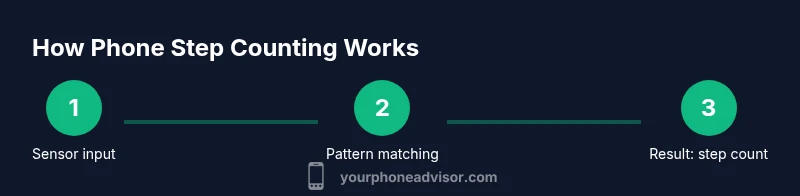
Smartphones count steps by translating patterns of movement into discrete events. The primary sensor is the accelerometer, which measures acceleration along three axes. When you walk, your body creates a characteristic rhythm: periodic bursts of acceleration as each foot strikes the ground and the body absorbs impact. The phone records these rhythms and uses a step-detection algorithm to classify them as steps. According to Your Phone Advisor, the essence is simple: detect a regular, repeating pattern that matches walking, and ignore random shakes. In practice, the exact algorithm varies by device and OS, which is why a phone in your pocket can report different step counts depending on position and usage. The Your Phone Advisor Team notes that modern devices apply filters to separate true walking from other motions, aiming for a clean daily total rather than momentary spikes.
The Core Sensors That Count Steps
The accelerometer is the workhorse behind most step counts. It measures acceleration along three axes and feeds raw data to the phone’s motion processor. The second sensor, the gyroscope, tracks rotation and orientation, helping the system distinguish walking from other activities with less planarity, like riding in a vehicle or bouncing on a bus. Some newer devices also leverage a barometer to infer stairs or elevation changes by sensing small air-pressure differences as you ascend or descend. However, barometers are rarely used alone for counting steps; they augment a motion-based approach and improve context for a given activity. In most everyday use, a combination of accelerometer data and simple threshold-based pattern matching determines when a step occurred. The result is a rolling total that apps present as “steps today” or “steps this week.”
How Android and iOS Step Counting Compare
On Android, step counts often originate from platform motion services and are synchronized with Google Fit or Samsung Health. Android users may see slightly different totals across devices because different apps apply distinct filters or smoothing. iOS relies on Core Motion to generate step data that flows into Apple Health; the system emphasizes privacy and local processing, with most counting done on the device. Cross-platform users may notice discrepancies due to data sync timing, device type, and app-specific algorithms. The Your Phone Advisor team recommends picking a primary health app and reviewing its data alongside any secondary trackers to understand your personal pattern rather than chasing parity across devices.
Factors That Affect Step Counts
Step counts are not a perfect, universal number. Several factors influence them:
- Placement: keeping the phone in your pocket, on a belt clip, or in a bag changes how clearly movement is detected.
- Orientation: portrait vs. landscape can alter the direction the accelerometer reads, affecting rhythm detection.
- Activity type: walking and running produce different acceleration profiles; cycling, swimming, or driving typically generate fewer or erratic counts.
- Device activity: background apps, battery saver mode, or high CPU load can change sampling rates and smoothing.
- Environment: vibrations from a vehicle or uneven terrain can confuse the detector.
- Sensor health: aging sensors or older hardware may sample data less consistently.
Understanding these factors helps you interpret daily totals more accurately and decide which device placement or app settings work best for you.
Calibrating and Improving Accuracy
Calibration and consistency are your allies in step counting. Start by updating your OS and the health app you use. Choose a single primary counting source (e.g., Google Fit or Apple Health) to avoid duplicative counts from multiple apps. Keep your phone on your person during most daily activity to maintain continuity, and use any built-in calibration option if your device supports it. Periodically test the numbers by walking a known distance and comparing the result with your actual steps; adjust placement or sensitivity in the app’s settings if available. If you also wear a dedicated fitness tracker, use it as a reference to spot discrepancies and recalibrate as needed. Remember that gradual, repeated testing over a week yields a clearer picture than a single walk test.
Privacy and Data Considerations
Step data is personal health information and is often stored in apps or the cloud. Review the permissions granted to your health apps and consider whether you want to share data with third-party services. On iOS, most processing happens locally on the device, which can reduce exposure, while Android may sync data with cloud accounts if you enable it. Always read the privacy policies of the apps you use and adjust data-sharing settings to your comfort level. If you prefer to minimize data access, disable automatic backups or restrict third-party integrations. Your Phone Advisor Team emphasizes balancing convenience with privacy and recommends regular reviews of app permissions.
Practical Tips for Everyday Use
- Pick one primary step-tracking app and stick with it to avoid confusion from multiple data sources.
- Keep the phone on your person for typical daily movement to improve stability of step counts.
- Check differences between walking vs running estimates and use the trend rather than exact daily totals.
- Calibrate when the app offers a dedicated option, especially after replacing the battery or upgrading the phone.
- Use your step data alongside wearables to gain a fuller picture of activity and to validate counts over time.
- Review privacy settings to ensure you’re comfortable with data sharing and cloud backups.
- Remember that step counts are a proxy for activity, not a medical measurement; use them to guide healthy habits rather than diagnose conditions.
Tools & Materials
- Smartphone (iOS or Android)(Ensure OS is updated to the latest version for the best sensor support.)
- Health/fitness app (built-in or third-party)(Common options include Apple Health, Google Fit, or Samsung Health.)
- Optional wearables for cross-check(A fitness band or smartwatch can help validate phone counts.)
Steps
Estimated time: 25-40 minutes
- 1
Choose your primary step-tracking source
Decide which app will be your main source for steps (e.g., Apple Health or Google Fit) and set it as the default data hub. This reduces duplication and helps you compare trends over time.
Tip: Consistency matters: use the same app for a stable baseline. - 2
Verify step counting is enabled
Open the health app and confirm that step counting is turned on and allowed to access motion sensors. Check any device- or app-specific settings that could affect sampling.
Tip: If you use battery saver mode, consider temporarily disabling it during testing. - 3
Keep the phone on your person
For everyday activity, carry the phone in your pocket or on your body to ensure the accelerometer captures typical walking patterns.
Tip: Avoid placing the phone in a bag during quick, repetitive movements if you want stable counts. - 4
Calibrate when available
If your device or app offers calibration, run it after major changes (new phone, battery replacement, app updates). Calibration helps align the detector to your gait.
Tip: Run a short test walk after calibration to verify improvement. - 5
Test with a known distance
Walk a familiar distance (e.g., 0.5 km) and compare the reported steps to your actual count. Note any drift and adjust placement or sensitivity if possible.
Tip: Do multiple trials across different speeds to capture a realistic range. - 6
Cross-check with wearables
If you own a smartwatch or fitness band, compare its step totals to your phone’s counts for the same period. Use discrepancies to identify which source is likely more accurate for you.
Tip: Calibrate or adjust expectations based on cross-check results.
Got Questions?
What sensors count steps on a smartphone?
The accelerometer is the primary sensor used to detect motion. Some devices also leverage a gyroscope and, in some cases, a barometer to improve context for activities like climbing stairs. Algorithms then classify regular rhythmic motions into steps.
Smartphones mainly use the accelerometer to detect movement, with occasional help from a gyroscope and barometer to better identify walking and stairs. The data is then converted into a step count by on-device algorithms.
Why is my step count different on my phone compared to a wearable?
Different devices and apps use distinct thresholds and smoothing techniques. Wearables and phones may sample at different rates and interpret motion differently, leading to small discrepancies in totals.
Phones and wearables often count slightly differently because they sample data at different rates and apply different algorithms. It's normal to see some variation.
Can I calibrate my phone’s step counter?
Some devices offer calibration in the health or motion apps. If available, follow the in-app steps to recalibrate after changes to your phone or gait. Not all devices provide a manual calibration option.
If your device supports calibration, use the option in the health or motion app and test with a known distance after calibrating.
Does enabling battery saver affect step counting?
Yes. Battery saver modes can reduce sensor sampling rates, which may lower step counts or reduce accuracy. Temporarily disabling it during testing can help.
Battery saver can slow down sensor sampling, so turning it off briefly can improve counting accuracy during testing.
Is my step data private by default?
Step data is typically stored within health apps and can be shared with cloud services if you enable syncing. Review app permissions and privacy settings to control data sharing.
Your step data is stored in the health app and may be shared if you enable syncing; check permissions to keep control over who sees it.
How can I use step data effectively without stressing about exact numbers?
Treat step counts as a trend indicator rather than a precise metric. Use daily totals to monitor activity and aim for consistency over time rather than chasing exact numbers every day.
Use the data to monitor overall activity trends, not to chase a perfect daily number.
Watch Video
What to Remember
- Step counting rests on motion sensors and pattern matching.
- Placement and activity type strongly influence accuracy.
- Calibrate and test with known distances for reliable data.
- Choose a single health app to unify your data.
- Prioritize privacy—check who can access your movement data.